
I’m excited to walk you through several hidden features of Jenni AI that many users often overlook. If you use Jenni AI for your academic or research writing, this guide is going to be super helpful.
What is Jenni AI?
Jenni AI is an AI-powered writing assistant built for researchers, students, and professionals. It helps with writing, organising references, citing sources, editing documents, and even interacting with multiple PDFs. Over time, it has added several helpful tools that simplify the writing and research process.
Overview of Jenni Features
| Feature | Description |
|---|---|
| Editing Metadata | Correct inaccurate metadata in uploaded research articles |
| 1700+ Citation Styles | Choose from a wide range of citation formats |
| Creating Collections | Organize research papers by project or topic |
| Auto-Cite and Recency Filter | Automatically cite sources and filter by year |
| Multi-Source PDF Chat | Chat with multiple PDFs simultaneously |
| Smart Citation | Instantly cite papers using just DOI |
| Fetch PDF | Retrieve open-access versions of PDFs |
| In-Document Tools | Insert tables, images, code blocks, and publish |
1. Editing Metadata in Research Articles
Sometimes when I upload PDFs, especially older or protected ones, the metadata (like journal name, author name, and publication date) doesn’t get imported correctly. To fix this:
Steps to Edit Metadata:
- Add the research article to your Jenni AI library.
- Click on the article in your library.
- Click the Edit button.
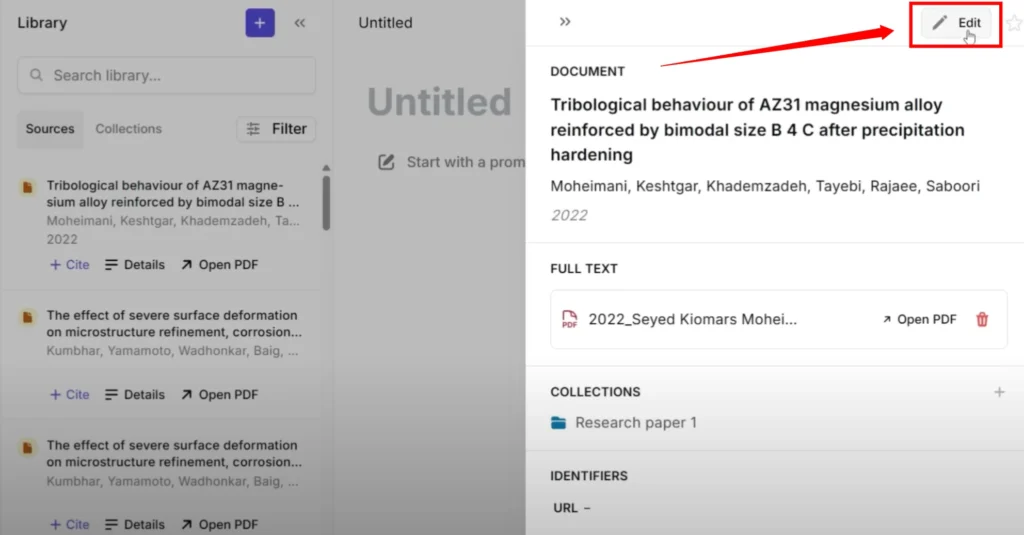
- Update the following fields as needed:
- Title
- Content type
- Access date
- Publication details
- DOI or URL
- Click Save once all the fields are correct.
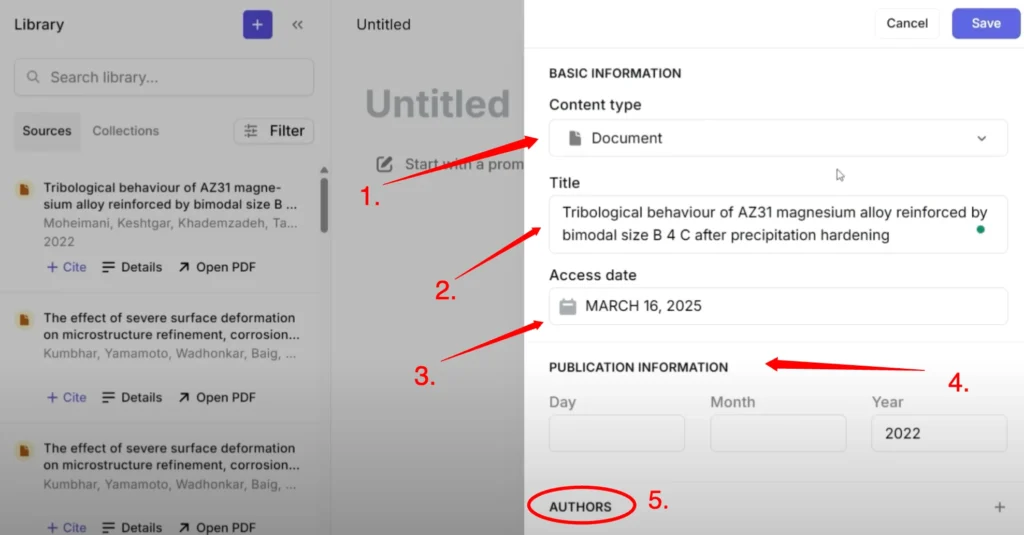
This ensures that all citations and references pulled from the article are accurate.
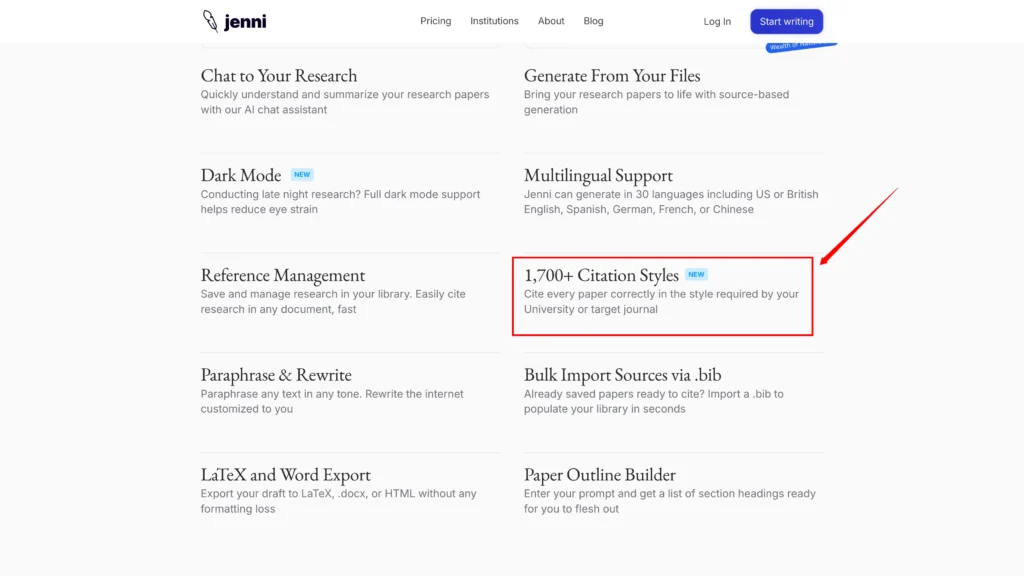
2. 1700+ New Citation Styles
Jenni AI recently added over 1,700 citation styles. I found it really useful because I often switch between formats based on the journal or university requirements.
How to Change Citation Style:
- Open your document inside Jenni AI.
- Click the Settings icon.
- Under Citation Style, choose from the dropdown list.
- Select a style like Harvard, APA, or any other.
- Jenni AI will automatically:
- Update all in-text citations
- Regenerate the reference list at the end of the document
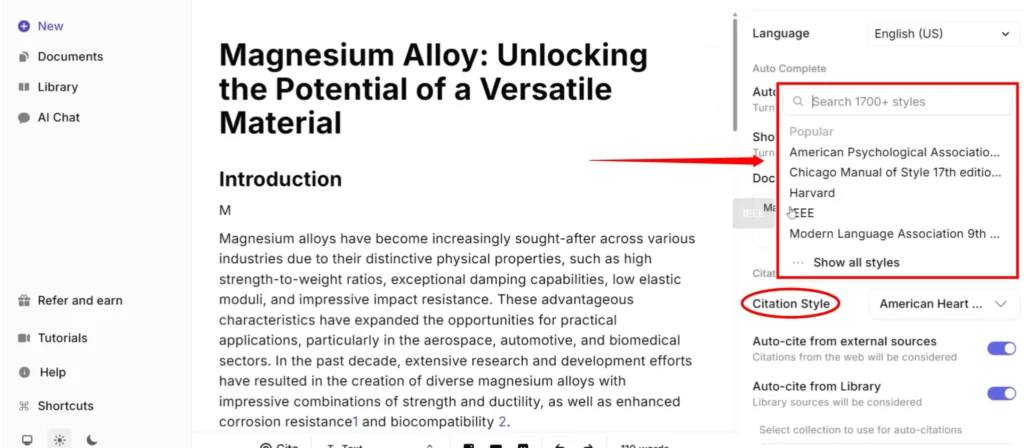
You can switch styles anytime, and it’ll refresh your entire document accordingly.
3. Creating Your Own Collections
When working on multiple projects, I prefer to group related papers into separate folders or collections.
How to Create a Collection:
- Go to your Library.
- Click on Collections.
- Click the “+” icon to create a new collection.
- Name it something like Research Paper 4.
- Add related PDFs by clicking Add Sources, then select your documents.
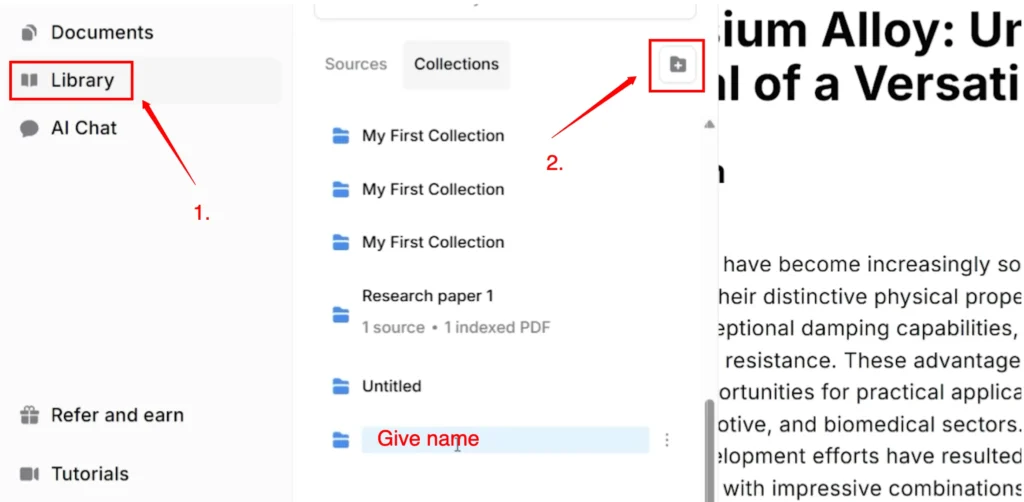
Later, when writing, I can refer to these specific collections to auto-cite only the papers relevant to that topic.
4. Auto-Cite and Citation Recency Filter
Another handy feature is Auto-Cite. It allows Jenni AI to automatically pull references from your selected sources.
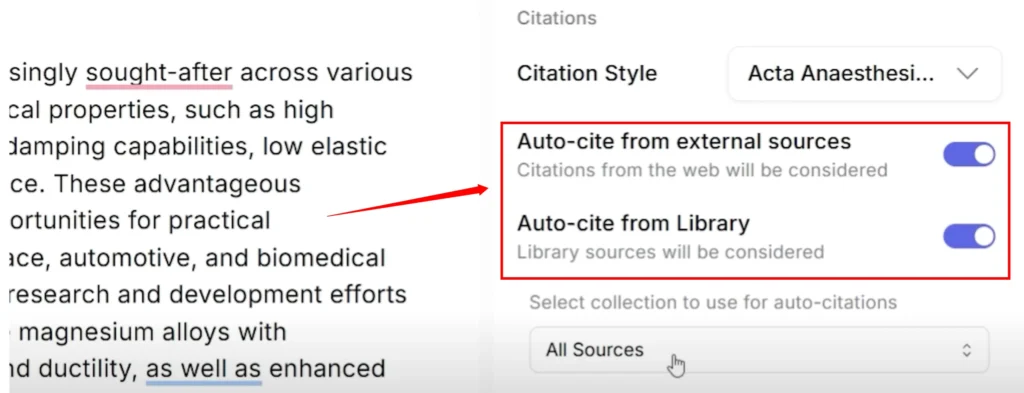
4.1 Steps to Enable Auto-Cite:
- Click the Settings icon in your document.
- Enable:
- Auto-Cite from Library
- Auto-Cite from External Sources
- Choose specific collections like Research Paper 5 for focused citations.
4.2 How to Use Citation Recency Filter:
- Enable Citation Recency Filter from the same settings panel.
- Choose a publication year, for example:
Since 2023. - Jenni AI will only cite sources published after your selected year.
This is helpful when I need to keep my research up to date with the latest studies.
5. Multi-Source PDF Chat
One of my favorite features is being able to chat with multiple PDFs at once. This helps when I want to compare findings across papers or extract themes.
How to Use Multi-Source PDF Chat:
- Open a research article PDF from your library.
- Click on AI Chat in the toolbar.
- Select additional PDFs to add to the chat.
- Ask questions like:
- “What are the main findings of these papers?”
- “Compare the methodologies used.”
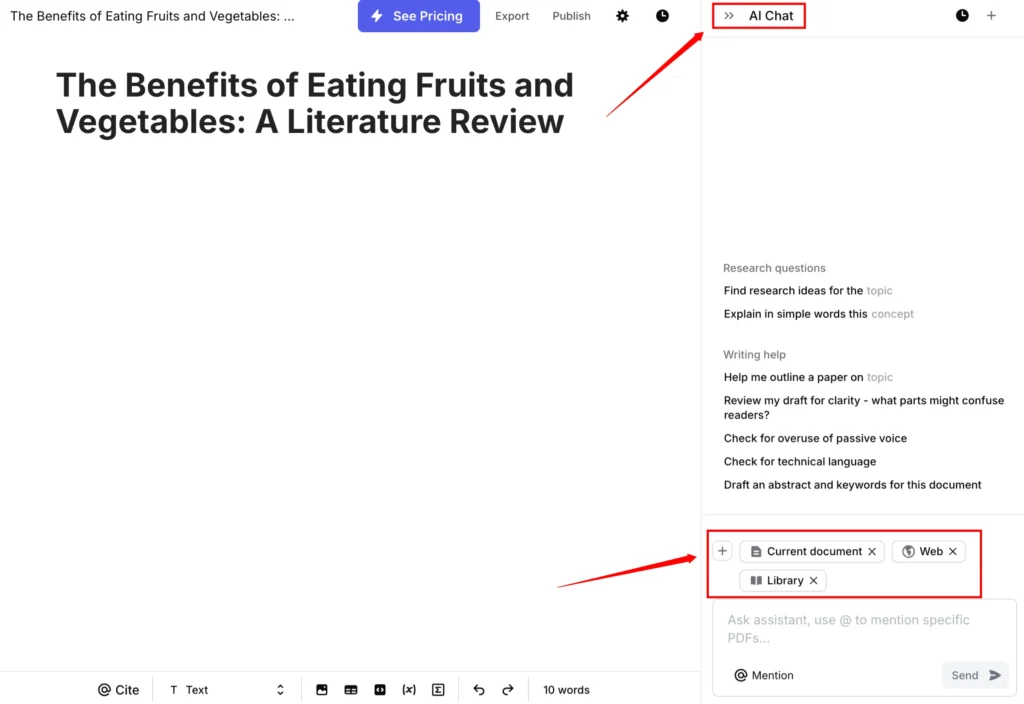
Jenni AI will return a combined, contextual response based on all selected PDFs.
You can also include sources from:
- Your Library
- Collections
- Web-researched documents
Jenni Literature Review Generator
6. Other Key Tools Inside the Editor
While working inside the document editor, Jenni AI offers even more tools to improve the writing experience.
Useful In-Editor Features:
- Insert Image: Add visual elements to your document.
- Insert Table: Structure data efficiently.
- Insert Code Block: Ideal for programming or technical writing.
- Multi-PDF Chat: Available while writing as well.
Once I finish writing and editing, I can click Publish to create a read-only version of the document, which is perfect for sharing with:
- Co-authors
- Peer reviewers
- Advisors
7. Smart Citation Using DOI
When I only have the DOI of a paper, I don’t need to upload it manually.
Steps for Smart Citation:
- Paste the DOI into the citation box.
- Jenni AI shows two options — choose Paste a Citation.
- The tool will instantly fetch and cite the article for you.
This saves time and ensures accurate referencing.
8. Fetch Open Access PDFs
Sometimes I need the full text of a paper, and Jenni AI allows me to fetch the PDF directly.
How to Fetch a PDF:
- Click on Fetch PDF inside the tool.
- Jenni AI searches for an open-access version.
- If found, it opens the full PDF instantly.
- I can then chat with or extract content from the paper right away.
No need to manually search different journal databases or repositories.
Final Thoughts
That wraps up the hidden features of Jenni AI that I use regularly in my academic and research writing workflow. These tools not only make my process faster but also help me stay more organized and accurate.
Recap of Features:
- Edit Metadata for accurate citations
- Access 1700+ citation styles instantly
- Create project-based collections
- Use Auto-Cite and filter by publication year
- Chat with multiple PDFs at the same time
- Insert images, tables, and code while writing
- Paste DOIs for instant citation
- Fetch open-access PDFs with one click
Why You Should Explore These Features
If you’re already using Jenni AI, it’s worth exploring these options to:
- Improve citation accuracy
- Keep your writing updated with recent studies
- Save time switching between tools
- Collaborate and share drafts more easily
Let me know if you have any questions or if you’d like a tutorial on any specific Jenni AI feature.
Read Also: Jenni AI Honest Review: Is it worth?
Leave a Reply