Quick answer: can Jenni AI chat with your PDFs?
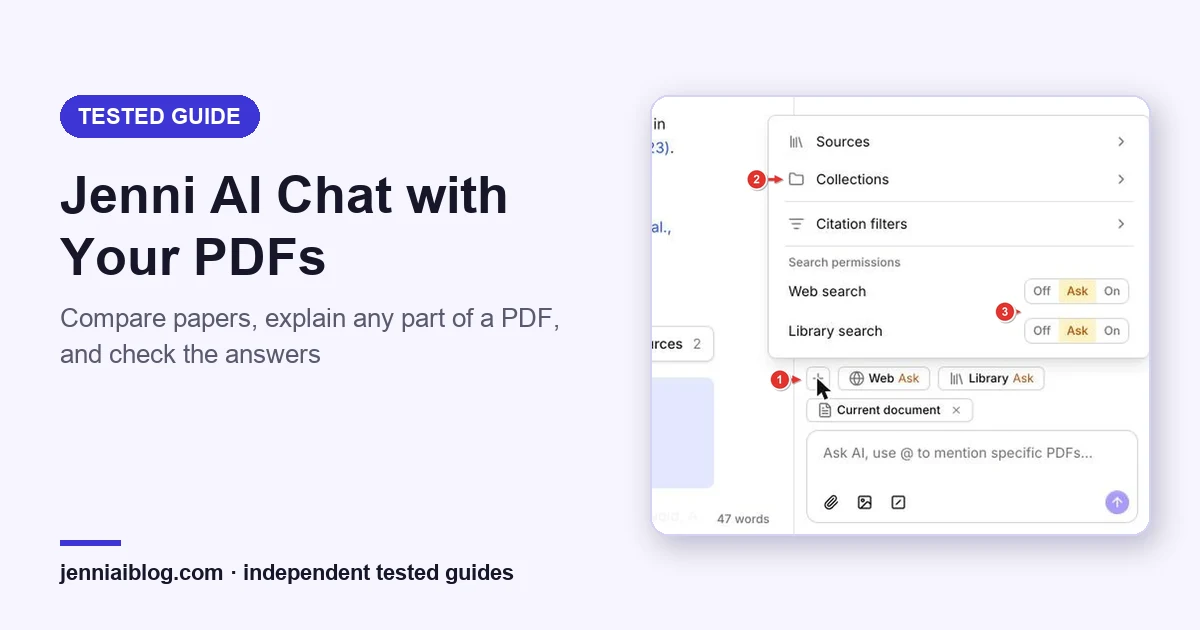
Yes. Open AI Chat, click + to add papers or a whole collection from your Library, then ask. Jenni answers with an in-text citation on every claim. In the PDF reader, Explain selection sends any part of a page to the chat. On the free plan each message uses 1 of 5 AI requests.
Try AI Chat on your own papers. The free plan needs no card.
Is Jenni AI right for you?
✓ Great for
- Essays and research papers that need real citations
- Literature reviews and thesis chapters
- Writing from your own PDFs and sources
- Staying in control, one sentence at a time
✗ Not the right tool for
- Getting a finished essay in one click
- Grammar-only checking (a grammar tool is cheaper)
- Anyone who won’t check the sources it adds
We tested AI Chat in a free Jenni account on November 26, 2026, using two open-access papers on teen sleep and screens. We also checked its numbers against the papers.
In this guide
- Before you start: add PDFs
- Open AI Chat
- Choose what Jenni reads
- Mention a PDF with @
- Save prompts with /
- Our test: compare two papers
- How accurate was it?
- Explain selection in the PDF reader
- Chat history
- How many chats are free?
- Prompt ideas
- FAQ
Before you start: add PDFs
AI Chat can only read papers that have a PDF attached in your Library. Metadata-only sources can be cited but not chatted with.
Add papers by DOI, upload, BibTeX, Zotero or Mendeley. Our Jenni Library guide shows every method.
Open AI Chat
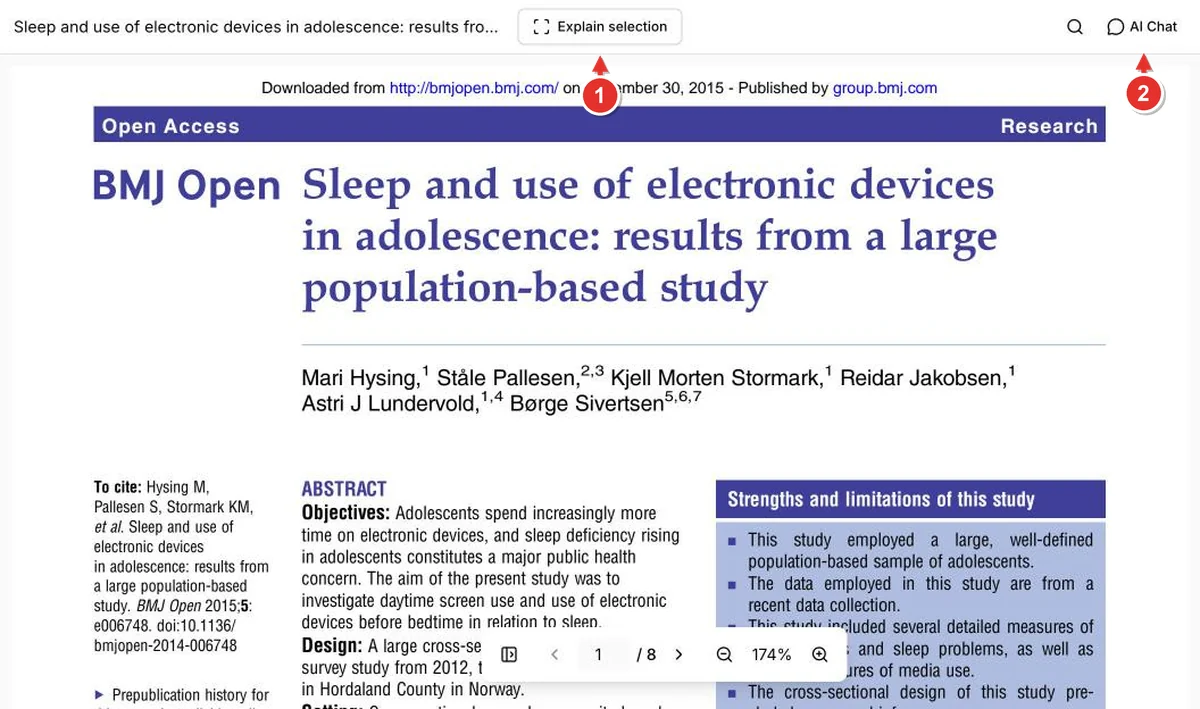
Click AI Chat at the top right of a document, or New → AI chat in the sidebar. The chat opens in a panel on the right, next to your writing.
By default it can look at your current document and, if you allow it, search the web and your Library.
What you get free
Jenni AI’s free plan, checked on jenni.ai/pricing in November 2026:
- 10 autocompletes a day (resets daily)
- 5 AI requests, shared by AI Chat, AI Edit and Ask Jenni
- 10 PDF uploads to write from your own sources
- 3 reviews and 3 workflow runs
- Unlimited in-text citations (the reference list is a paid feature)
No card needed · free forever. If you outgrow it, Plus is $12/mo billed yearly.
Choose what Jenni reads
Click + above the chat box. You can add single Sources, whole Collections, or set Citation filters.
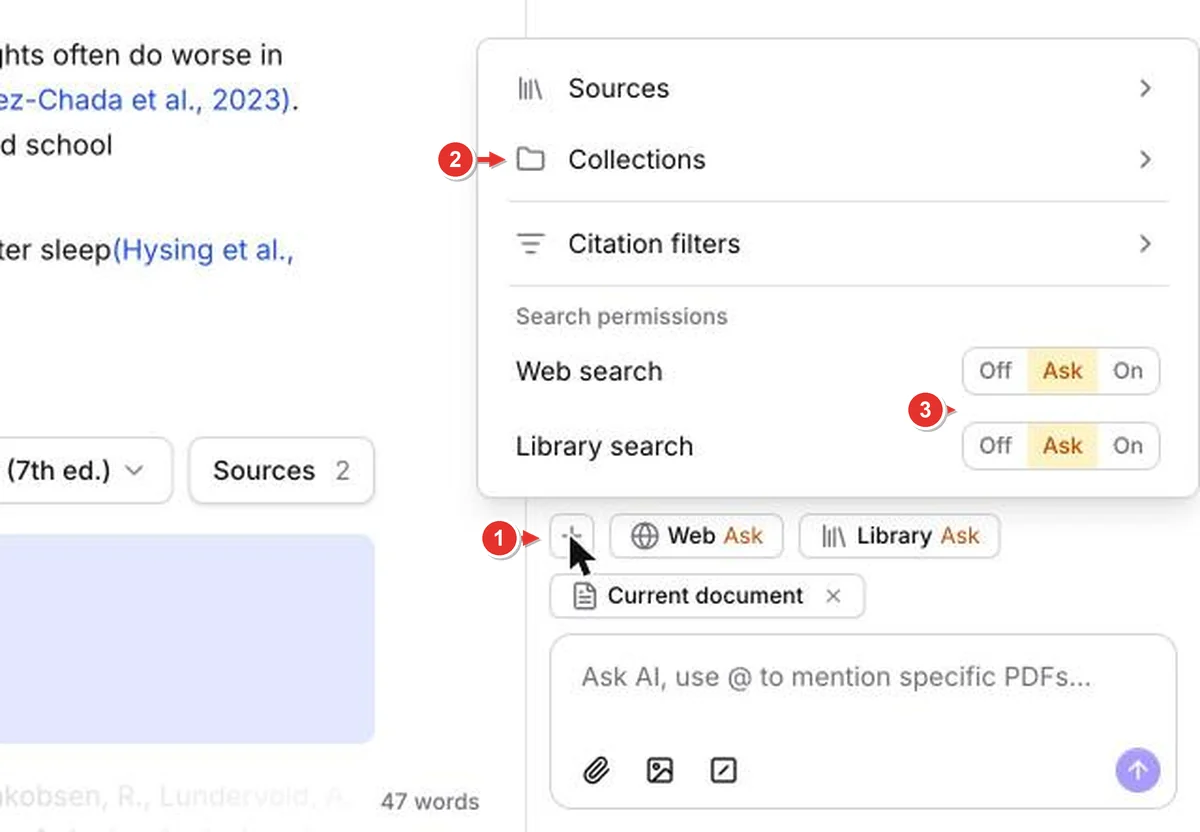
Web search and Library search each have three settings: Off, Ask (Jenni asks first) and On. Turn web search Off when you want answers only from your papers.
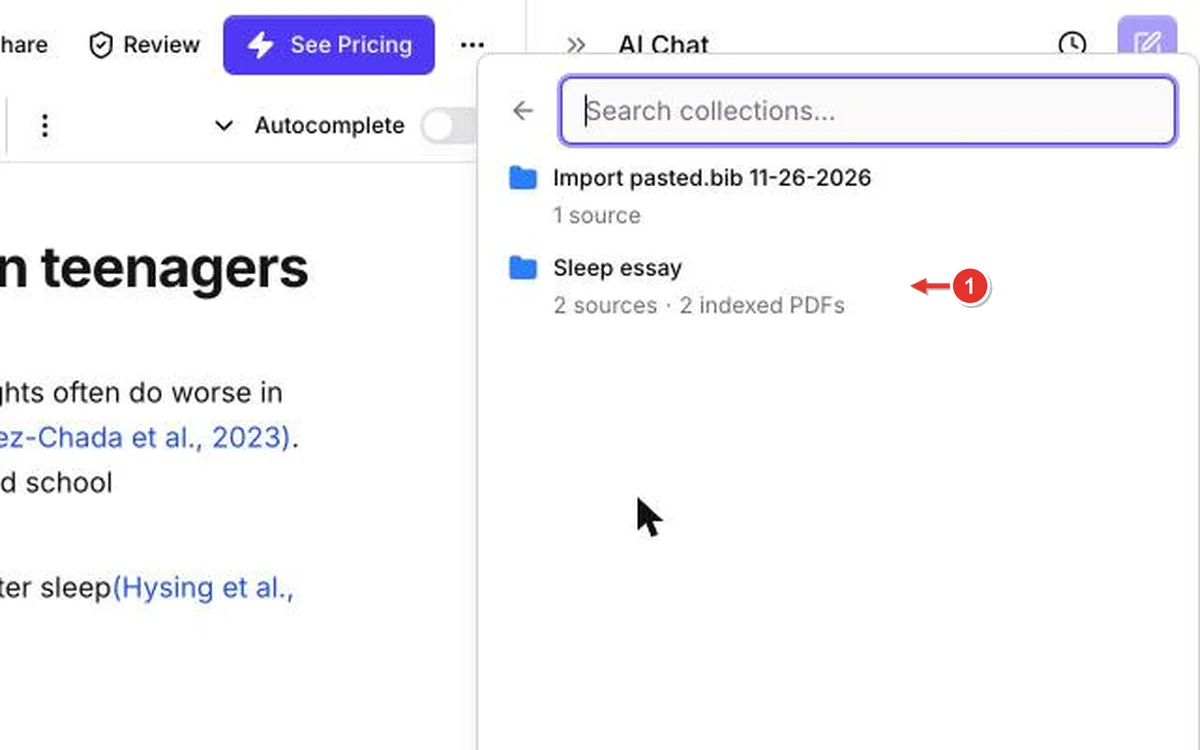
Each source appears as a chip above the chat box. Click its × to remove it.
We also removed “Current document” so the answer came only from the two papers.
Mention a PDF with @
Type @ in the chat box to pick a collection or a single PDF from your Library.
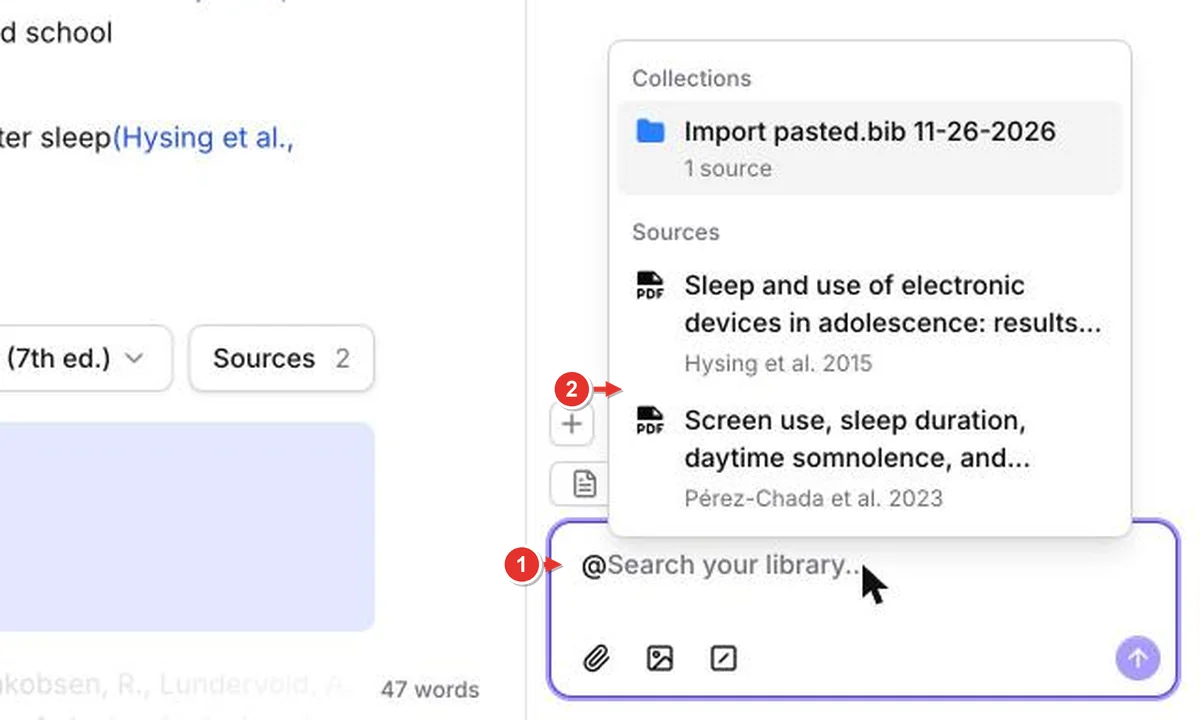
Only papers with a PDF appear under Sources. Our BibTeX-only paper did not show up until a PDF was attached.
Save prompts with /
Type / to open your saved prompts. The first time, choose Create and manage prompts.
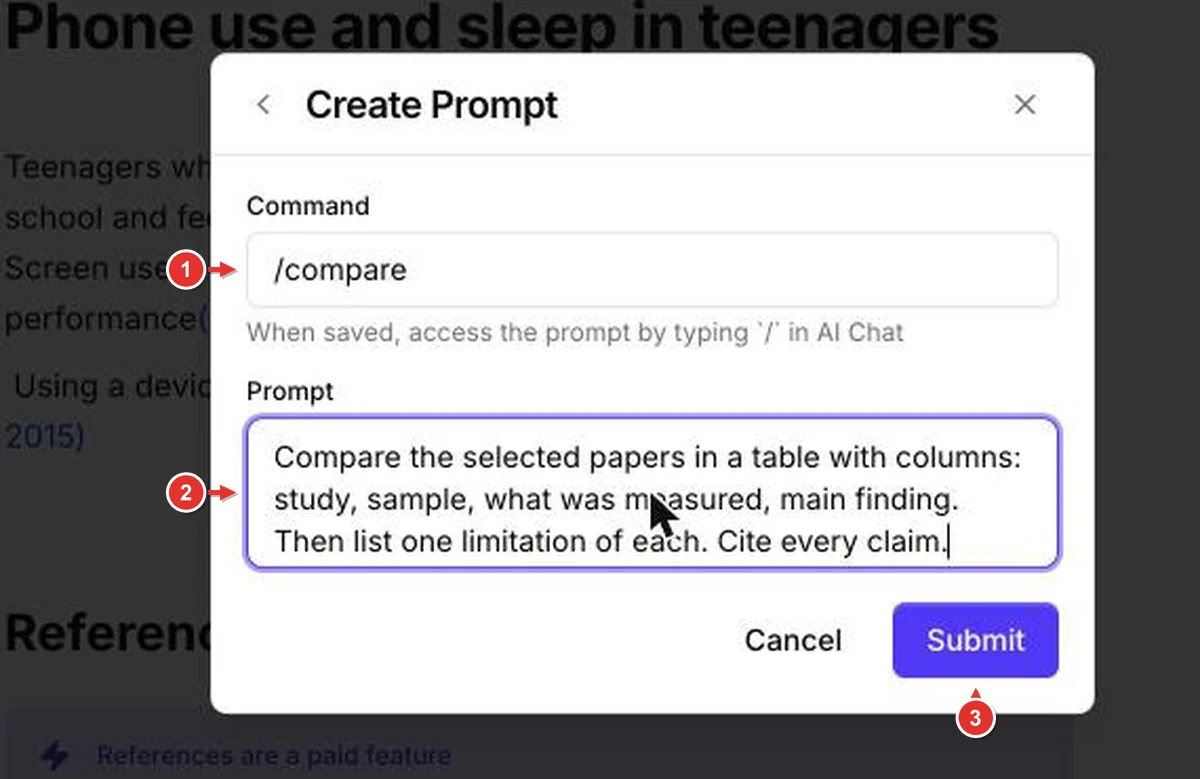
We saved /compare: “Compare the selected papers in a table with columns: study, sample, what was measured, main finding. Then list one limitation of each.
Cite every claim.”
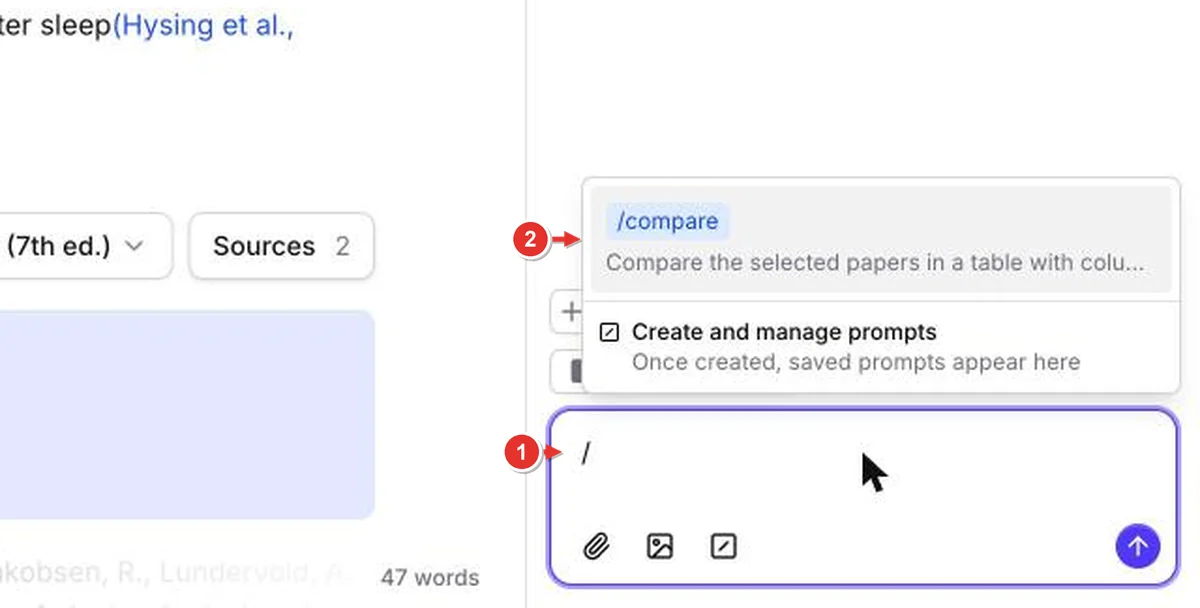
Saved prompts are free to create and use. Only sending the message counts as an AI request.
Our test: compare two papers
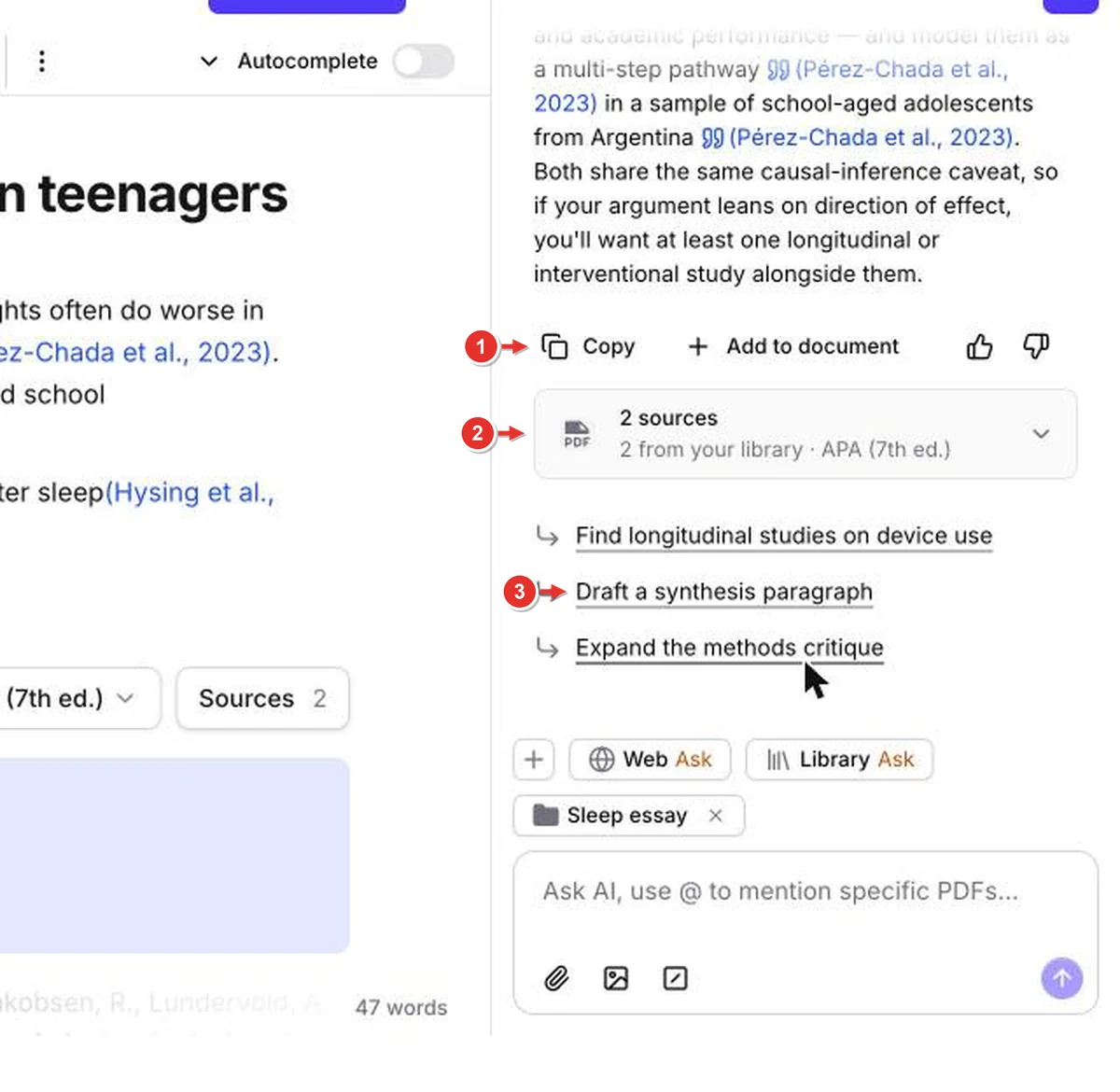
With the Sleep essay collection selected, we sent /compare. Jenni took about a minute and returned a comparison table, one limitation per paper, and a short synthesis.
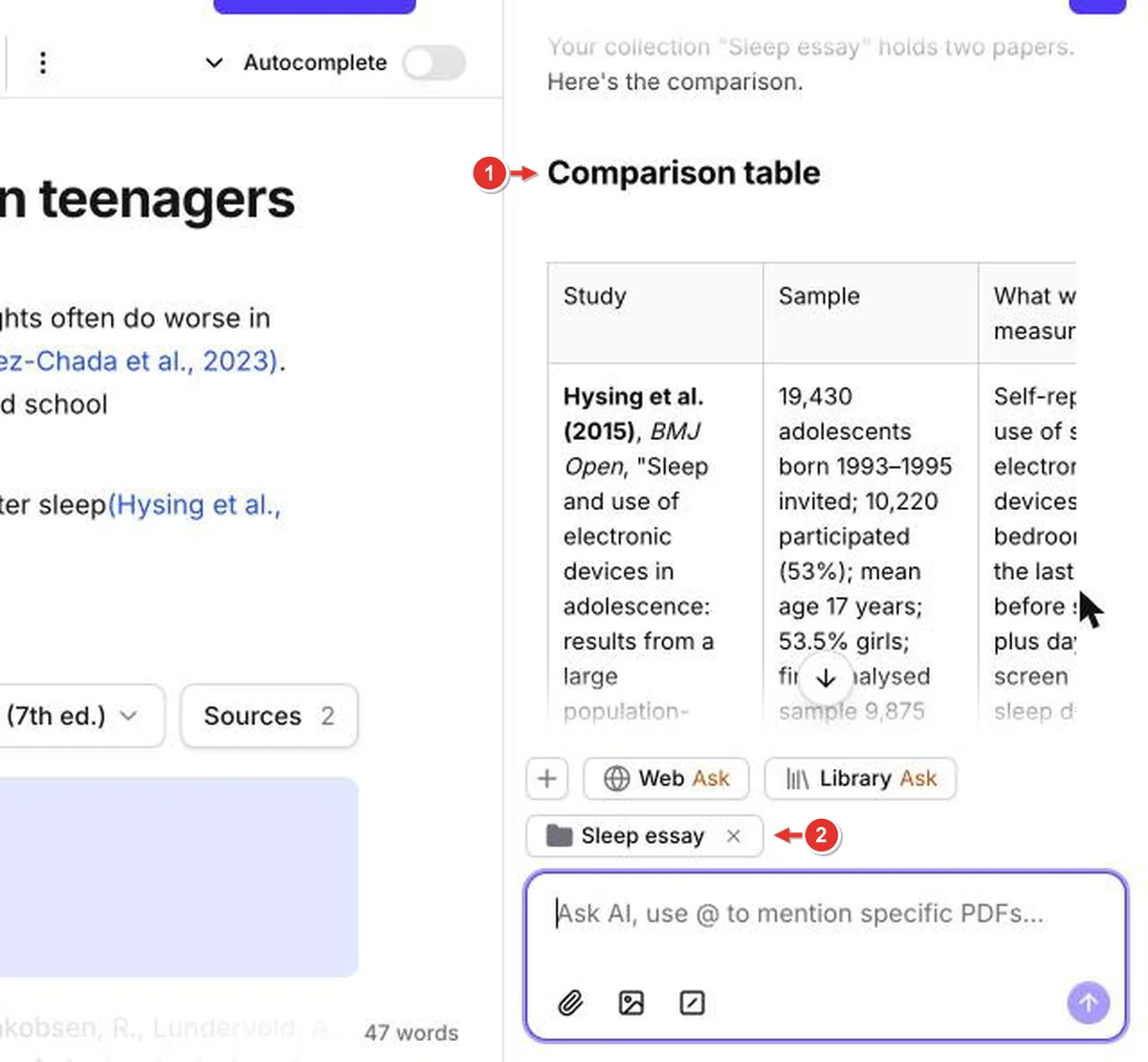
Every row had an in-text citation. Under the answer you can Copy it, Add to document, see the sources, or click a follow-up idea.
How accurate was it?
We checked the table against both papers. Most of it was right, including the key statistics:
- Hysing et al.: PC use and under 5 hours of sleep, OR 2.70 (95% CI 2.14 to 3.39). Correct.
- Pérez-Chada et al.: sleep duration and daytime sleepiness, srw = −0.27, and mobile use and grades, srw = −0.11. Correct.
- The limitations (cross-sectional design, so no cause and effect) matched what the authors wrote. Correct.
One number was wrong.
The table said Hysing et al. analysed 9,875 teenagers. The paper says 9,846, which is 10,220 participants minus 374 invalid answers.
Our advice
- Treat AI Chat as a fast first read, not the final word.
- Open the PDF and check any number you plan to quote.
- Keep sources narrow (one collection, web Off) for answers you can trace.
Explain selection in the PDF reader
Open a PDF from your Library and click Explain selection at the top. Then drag a box over any part of the page: a paragraph, a table or a figure.
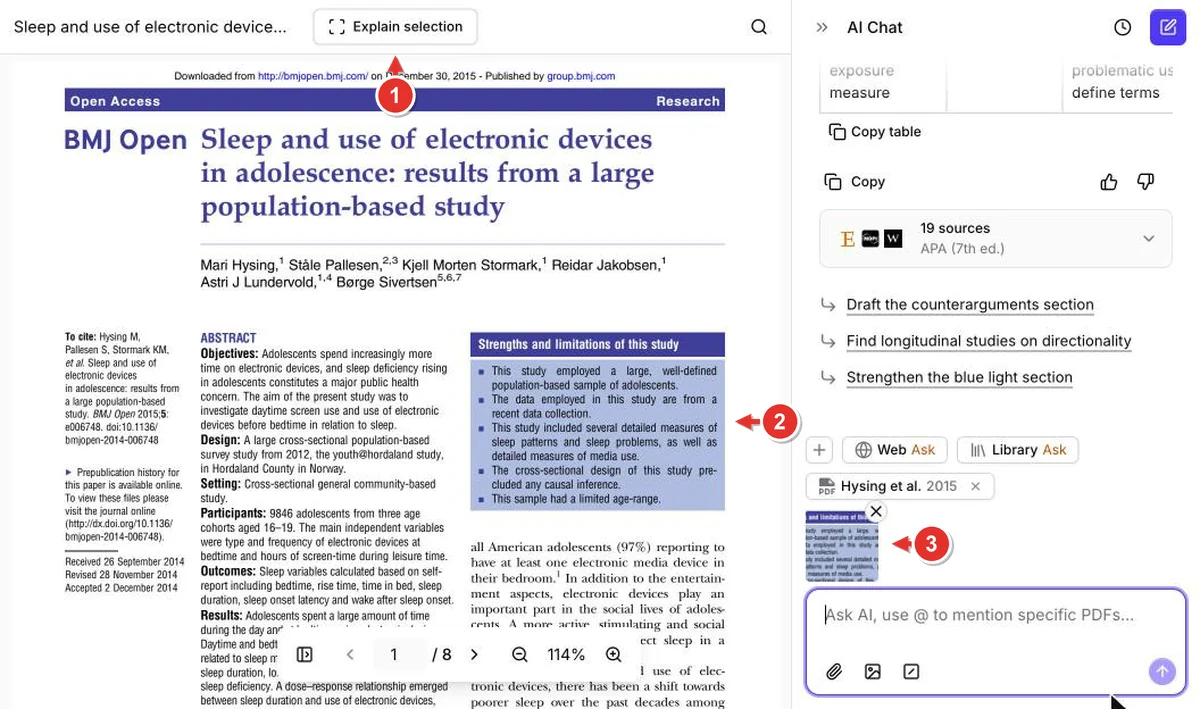
The selection is attached to the chat as an image, with the paper added as a source. We asked: “Explain this box in simple words for a first-year student.”
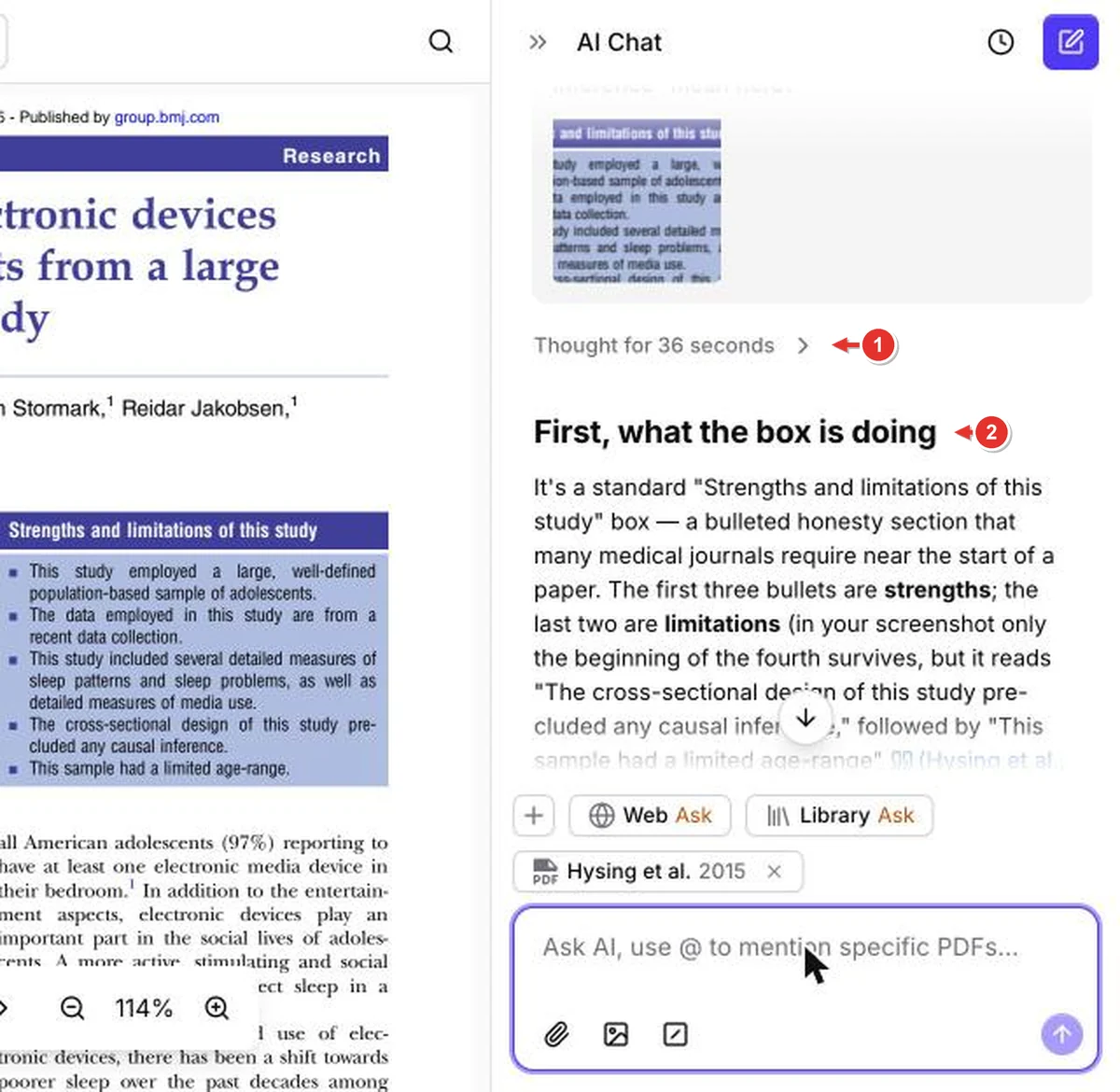
The explanation was clear and correct. It even noticed our box cut off the last bullet and read the missing words from the PDF itself.
The chat box also has an image button for attaching your own images; we only tested images sent through Explain selection.
Chat history
Click the clock icon at the top of the chat panel to see all your chats. You can search them and reopen any thread.
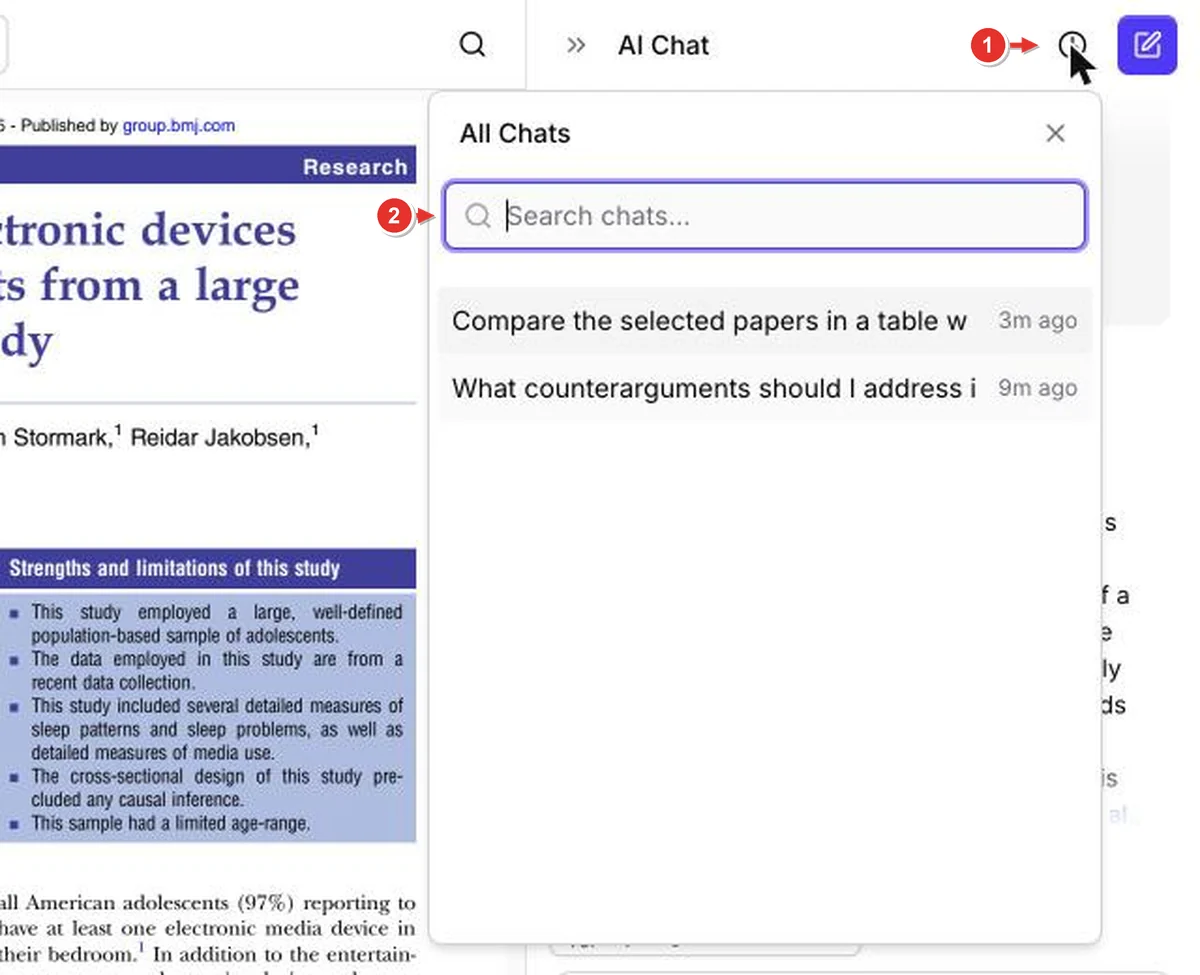
Start a new thread with the pencil icon. One thread per question keeps answers focused.
How many chats are free?
Every AI Chat message uses an AI request. The free plan has 5 in total, shared with AI Edit and Ask Jenni.
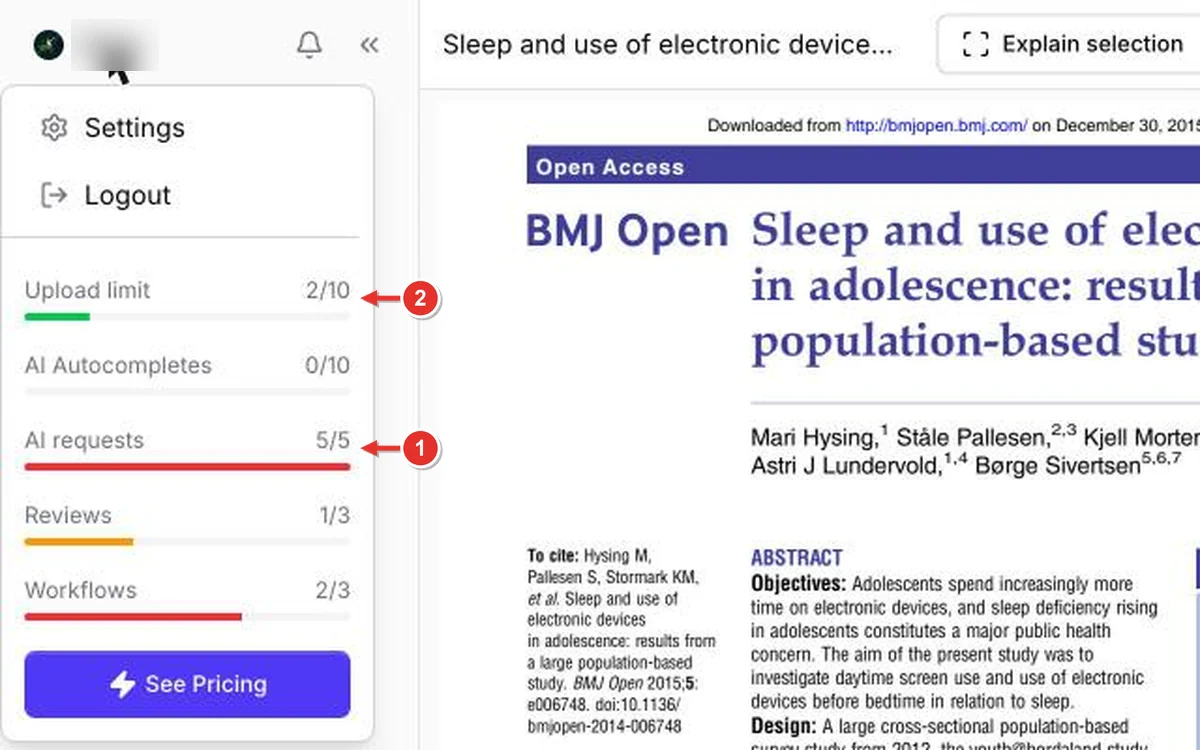
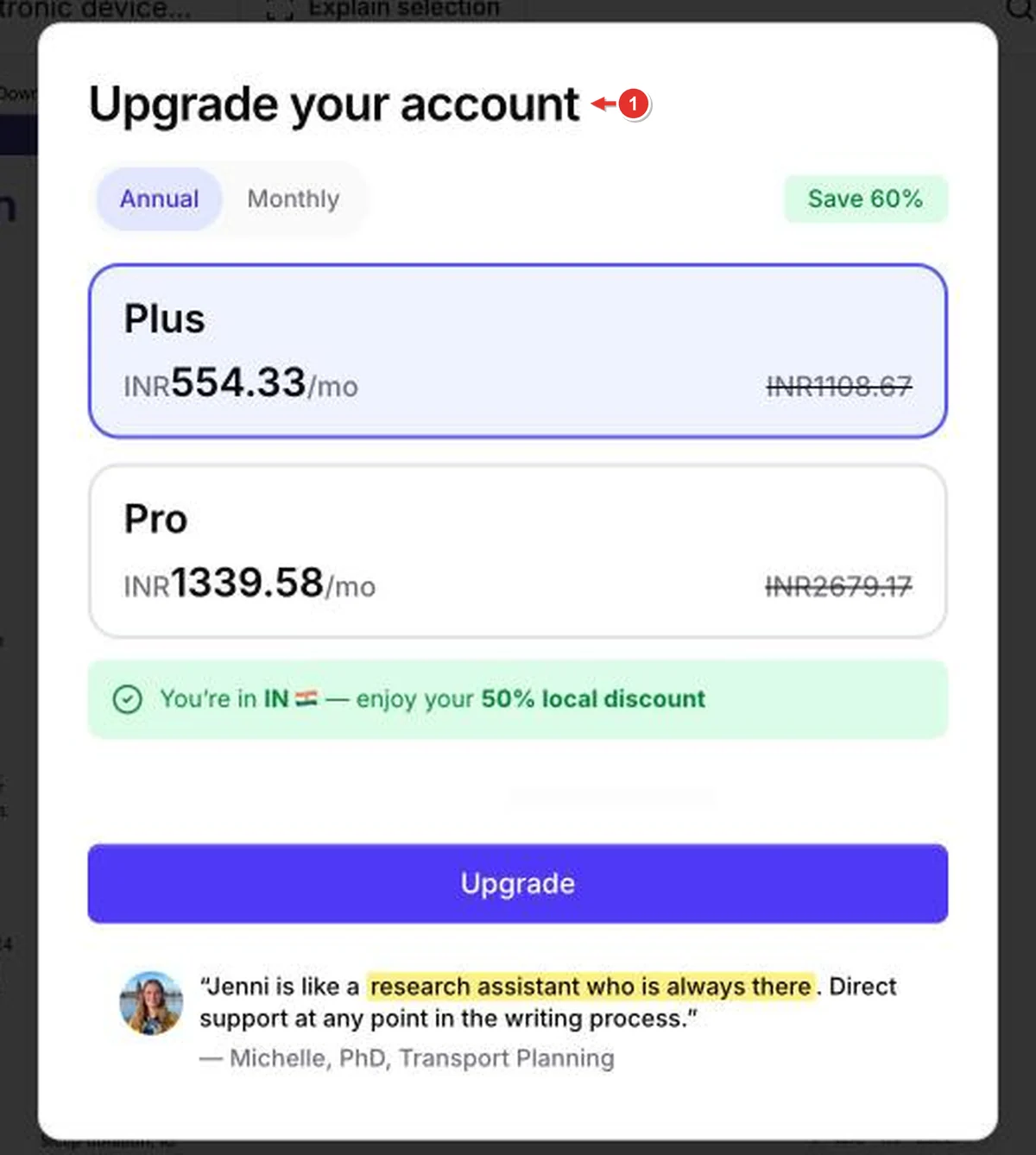
When they run out, sending a message opens the Upgrade window instead of an answer.
| Plan | AI requests | Price |
|---|---|---|
| Free | 5 in total | $0 |
| Plus | 500 a month | $12/mo billed yearly ($30 monthly) |
| Pro | Unlimited | $29/mo billed yearly ($73 monthly) |
Jenni also lists newer chat tools, such as charts, visual explanations and running code in the chat. We had no free requests left to test them, so we can’t vouch for them yet.
See all plans in our pricing guide, or how to pay less for Jenni.
Prompt ideas for AI Chat
On the free plan, make each message count. Ask for several things at once, in a set format.
We tested the first one; the rest are ideas to try:
- Compare these papers in a table: study, sample, method, main finding, limitation. Cite every claim.
- Summarise this paper in 5 bullet points for a first-year student, with page numbers.
- What do these papers disagree on? Quote the exact lines.
- List gaps these papers point to that a new study could fill.
- Check my paragraph against these sources. Which claims are not supported?
Save your favourites with / so you don’t retype them.
What we found when we tested it
- 10 of 10 citations pointed to real papers (8 fully correct)
- A 2,592-word literature review with 49 sources in 1 min 50 s
- In our essay test, Jenni wrote 76% of the words while we steered
Honest limit: 2 of 5 essay citations were loose matches for their sentence. Always open the source before you keep it.
Start Jenni free in 3 steps
- Sign up with Google or email.
- Describe your paper in the prompt box: topic, length and citation style.
- Press → to accept a suggestion, or keep typing to skip it.
No card needed. Upgrade only if you hit the free limits.
FAQ
Can Jenni AI chat with PDFs?
Yes. Add PDFs to your Library, then add them (or a collection) to AI Chat with + or @. Jenni answers with citations to those papers.
How many AI Chat messages do I get free?
5 AI requests in total on the free plan, shared with AI Edit and Ask Jenni. Plus gives 500 a month and Pro is unlimited.
Is Jenni AI Chat accurate?
Mostly, in our test: the key statistics and limitations were right, but one sample size was wrong (9,875 instead of 9,846). Check numbers against the PDF.
What does Explain selection do?
In the PDF reader, you drag a box over part of a page. Jenni attaches it to AI Chat as an image and explains it.
Can I stop Jenni from using the web?
Yes. Click + in the chat and set Web search to Off. Then answers come only from your selected sources.
Can I save my own prompts?
Yes. Type / in AI Chat and choose Create and manage prompts. Saved prompts are free; sending them uses a request.
Leave a Reply