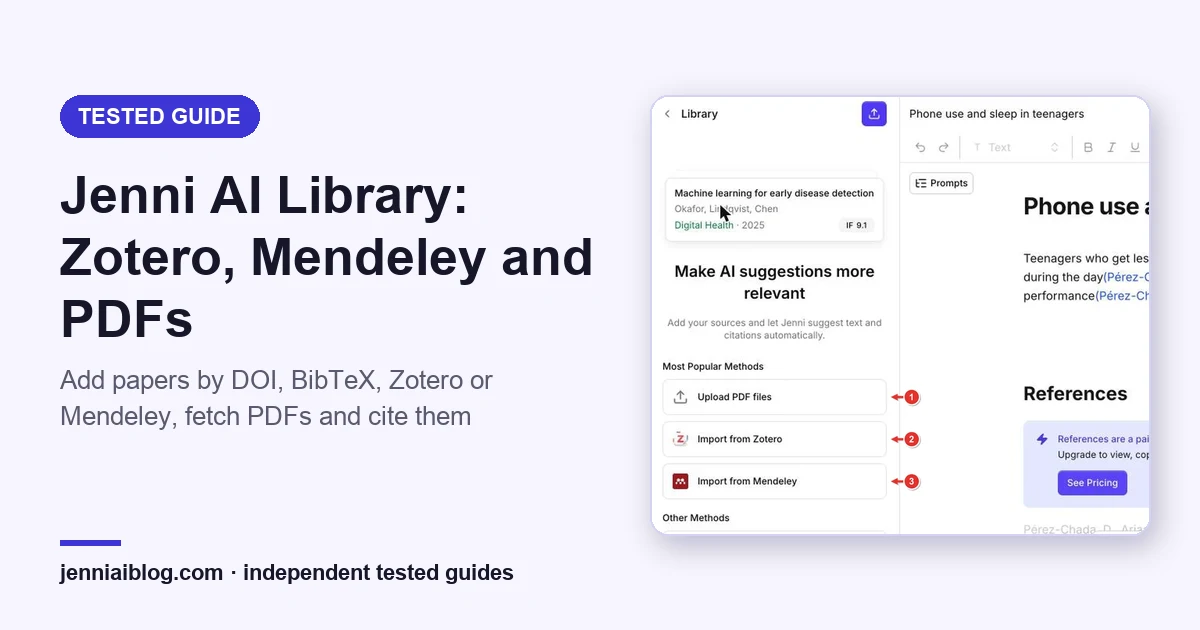
Quick answer: how does the Jenni AI Library work?
The Library is Jenni’s built-in reference manager. Add papers by uploading PDFs, pasting a DOI, importing a .bib/.ris file, or connecting Zotero or Mendeley. Papers with a PDF attached can be cited, chatted with and used by autocomplete. The free plan allows 10 PDF uploads.
Build your Library on the free plan first. No card needed.
Is Jenni AI right for you?
✓ Great for
- Essays and research papers that need real citations
- Literature reviews and thesis chapters
- Writing from your own PDFs and sources
- Staying in control, one sentence at a time
✗ Not the right tool for
- Getting a finished essay in one click
- Grammar-only checking (a grammar tool is cheaper)
- Anyone who won’t check the sources it adds
We tested the Library in a free Jenni account on November 26, 2026. We added three real papers on teen sleep and phone use, fetched their PDFs, sorted them into a collection and cited them.
In this guide
- Open the Library
- 5 ways to add sources
- Add a paper by DOI
- Fetch the PDF
- Import a .bib or .ris file
- Import from Zotero
- Import from Mendeley
- Upload your own PDFs
- Check and edit the details
- Organize with collections
- Cite from your Library
- Free plan limits
- FAQ
Open the Library
Click Library in the left sidebar. An empty Library shows every way to add sources, under “Most Popular Methods” and “Other Methods”.
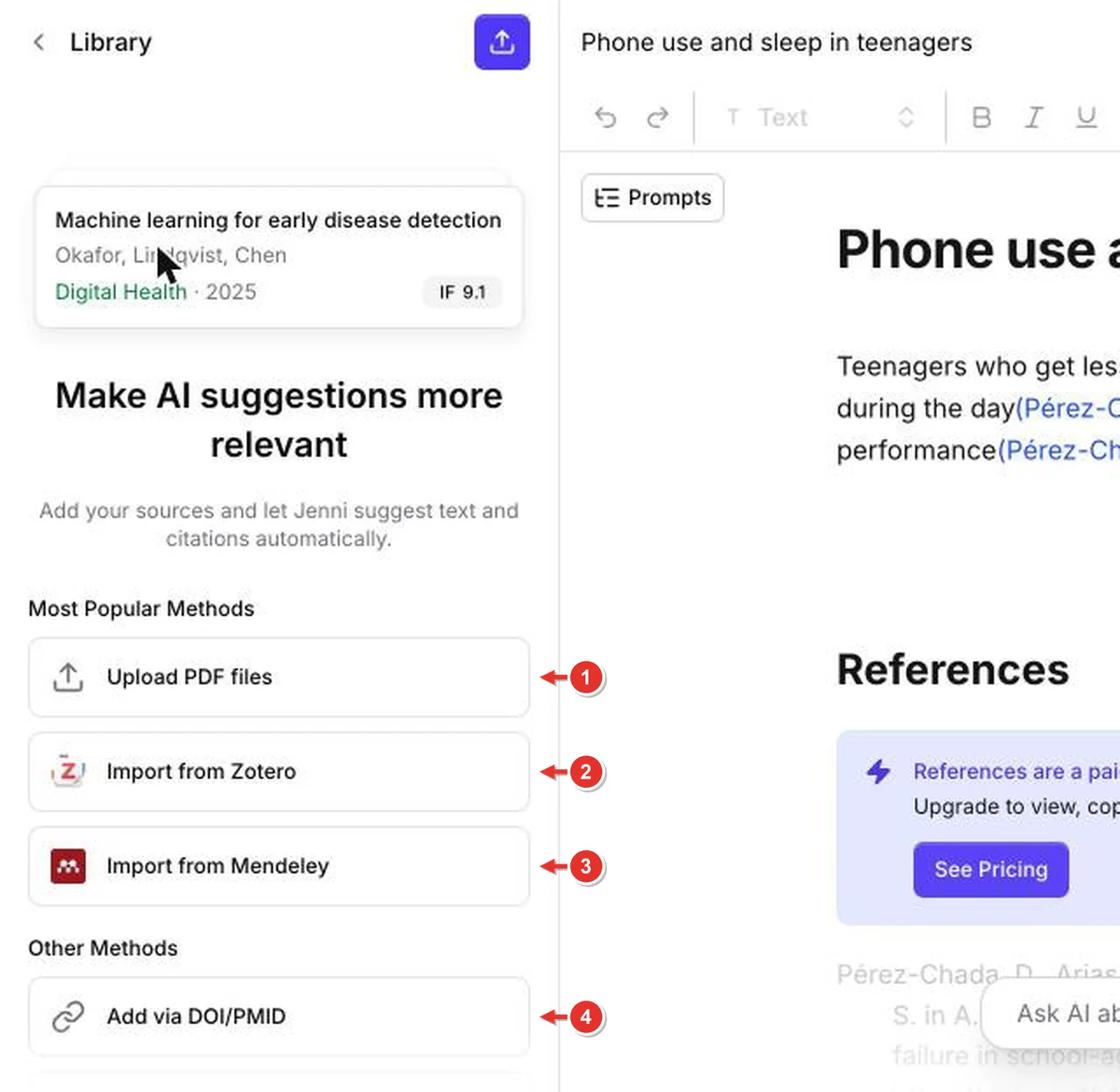
Once you have sources, the purple upload button at the top of the Library opens the same options.
5 ways to add sources
| Method | Best for | PDF included? |
|---|---|---|
| Paste ID (DOI, PMID, arXiv, ISBN) | One paper you already know | Jenni can fetch it for open-access papers |
| Import .bib / .ris | A reference list from any manager | No, metadata only; attach PDFs later |
| Import from Zotero | Zotero users | Yes, if the PDF is attached in Zotero |
| Import from Mendeley | Mendeley users | Yes, if the PDF is attached in Mendeley |
| Upload PDFs | Files on your computer | Yes |
This matters because only papers with a PDF can be used in AI Chat and to guide autocomplete. A metadata-only source can still be cited.
What you get free
Jenni AI’s free plan, checked on jenni.ai/pricing in November 2026:
- 10 autocompletes a day (resets daily)
- 5 AI requests, shared by AI Chat, AI Edit and Ask Jenni
- 10 PDF uploads to write from your own sources
- 3 reviews and 3 workflow runs
- Unlimited in-text citations (the reference list is a paid feature)
No card needed · free forever. If you outgrow it, Plus is $12/mo billed yearly.
Add a paper by DOI
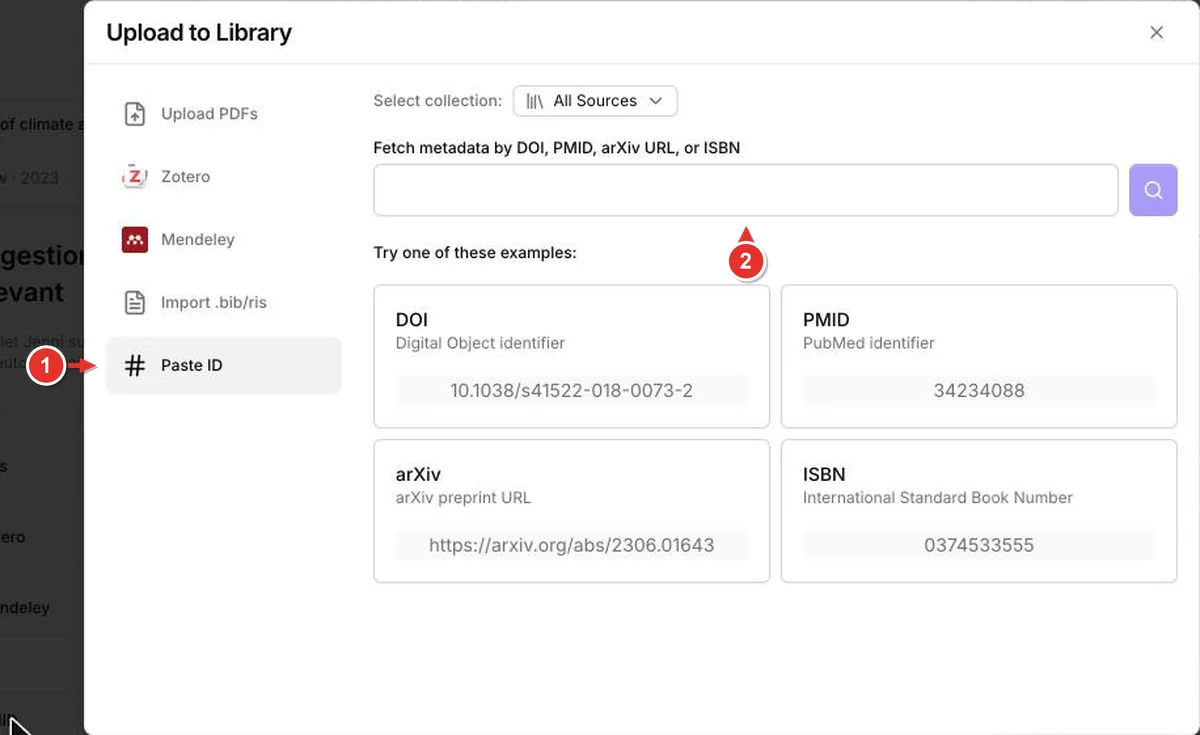
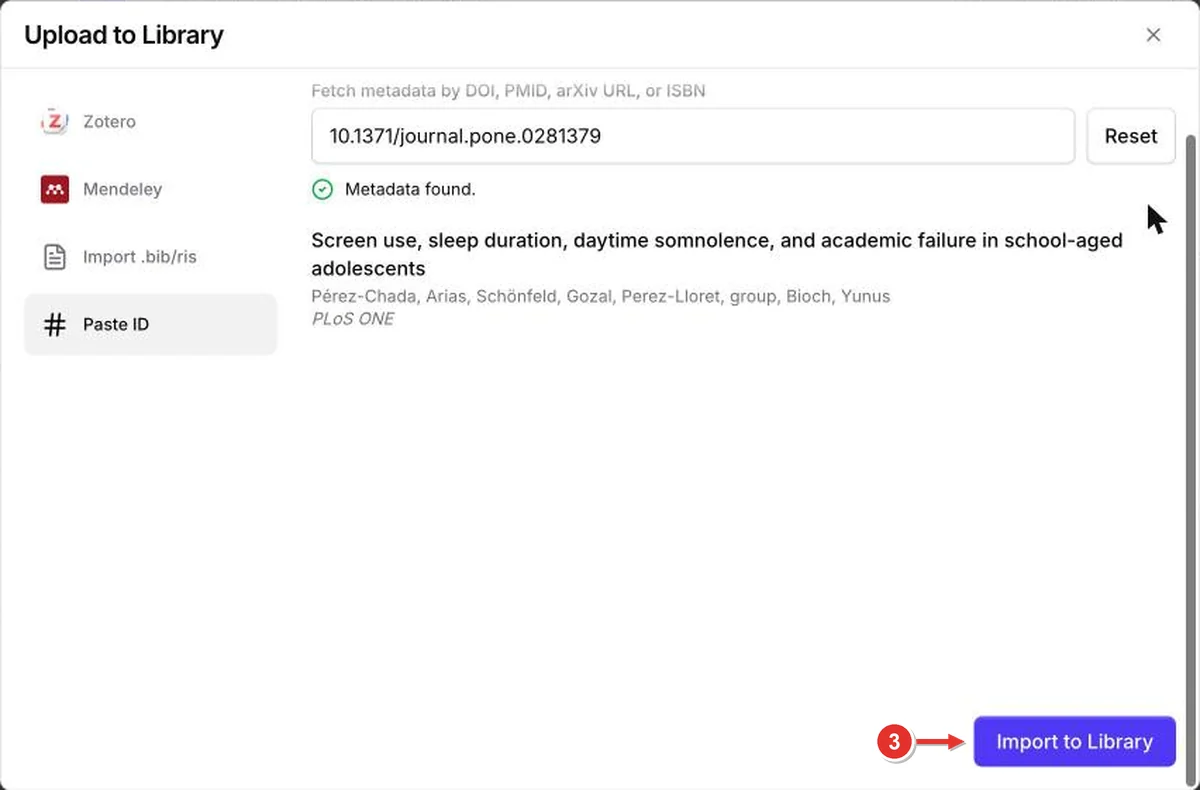
Open the upload window and choose Paste ID. It accepts a DOI, PMID, arXiv link or ISBN.
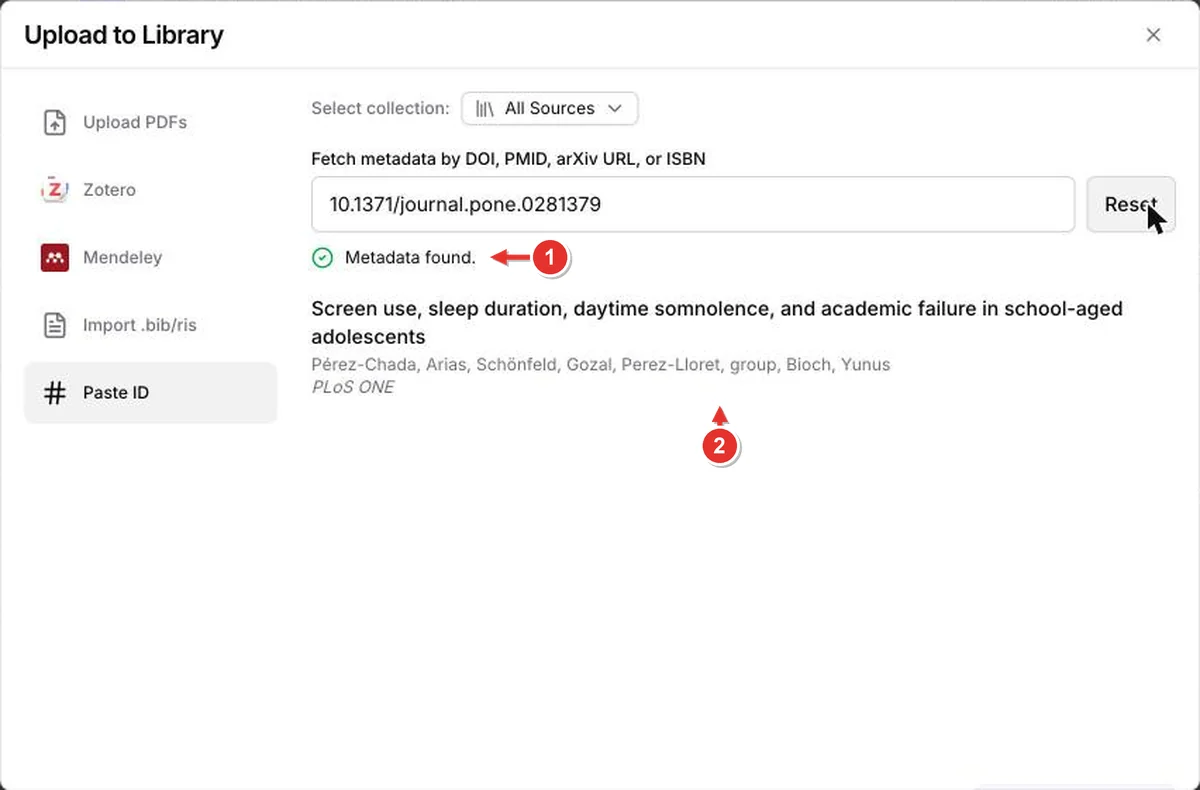
We pasted a PLOS ONE paper’s DOI. Jenni showed Metadata found with the right title and authors within a few seconds.
Click Import to Library at the bottom. You can also pick a collection first at the top of the window.
Fetch the PDF
A DOI import brings in the details only. Jenni then shows a missing PDF notice and a Fetch PDF button on each paper.
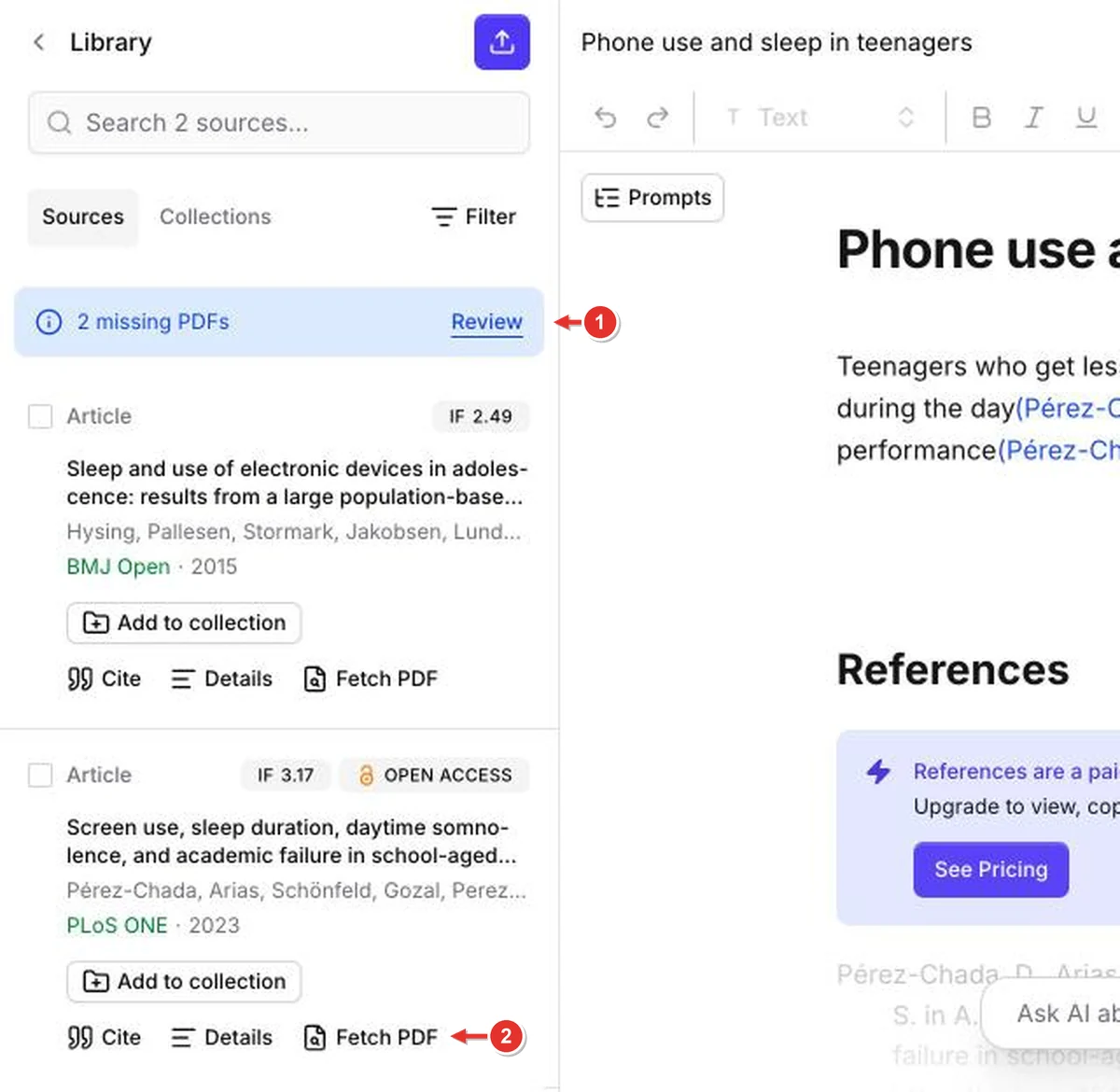
Both of our open-access papers fetched within about a minute. The button changes to Open PDF when it works.
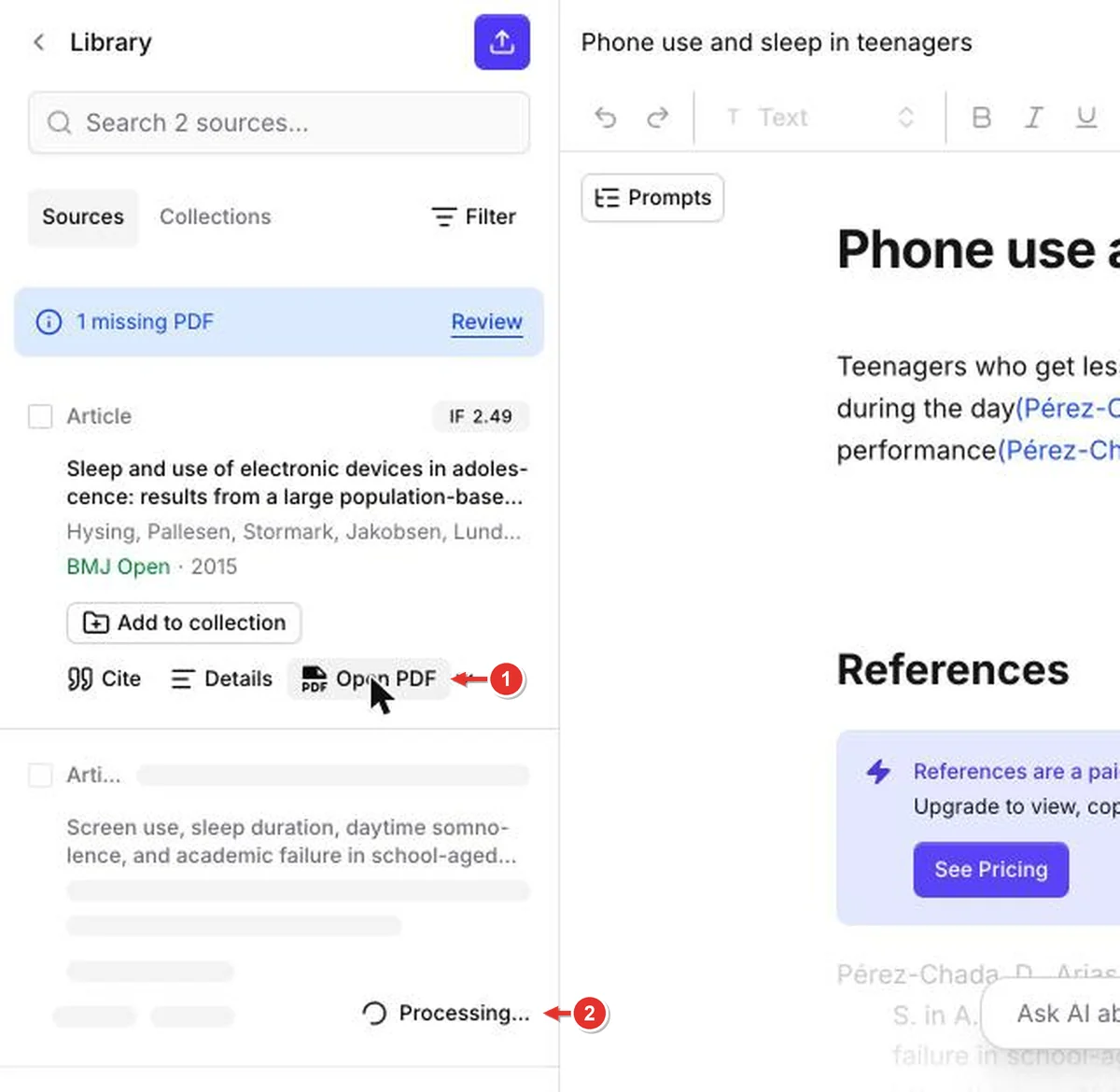
Fetching works for open-access papers. For paywalled papers, download the PDF through your university and use Upload PDF on that source.
Good to know
- Each fetched PDF counted as 1 of the 10 free uploads in our test.
- Open PDF shows the paper in Jenni’s reader, with Explain selection and AI Chat buttons at the top.
Import a .bib or .ris file
Already have a reference list? Open Import .bib/ris, paste the BibTeX or RIS text, or click select file.
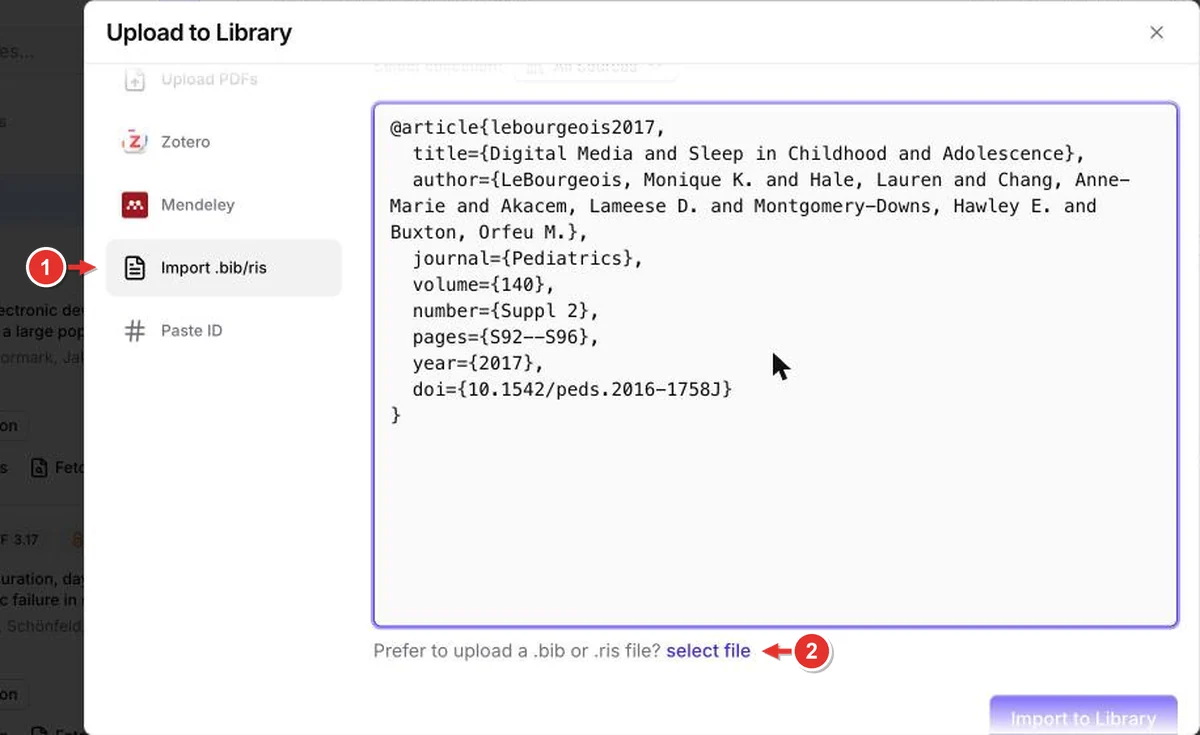
Our pasted entry imported straight away (“Successfully uploaded 1 source”). Jenni also put it in a new collection named after the import.
This is the easiest route from any reference manager, including EndNote, which has no direct connection: export to .ris and import it here.
Import from Zotero
Choose Zotero in the upload window and click Connect Zotero.
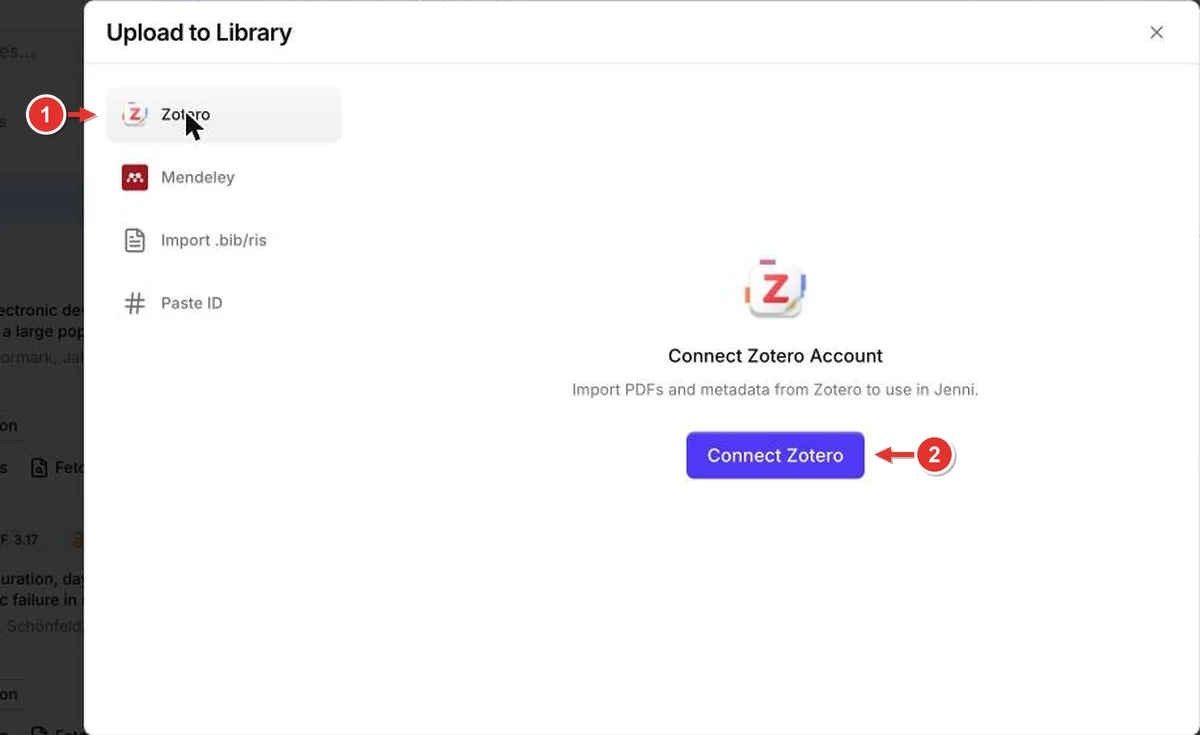
- Sign in to your Zotero account in the new tab.
- Click Connect account and accept the permissions.
- Choose which Zotero collections to import.
- Close the tab. Jenni imports in the background, including attached PDFs.
One catch from Jenni’s help center: only papers saved inside a Zotero collection appear. Loose items in “My Library” won’t import, so put them in a collection first.
We didn’t connect a Zotero account for this guide, as it needs your own login. The steps above follow Jenni’s help article and the screens we saw.
Import from Mendeley
Mendeley works the same way. Choose Mendeley and click Connect Mendeley.
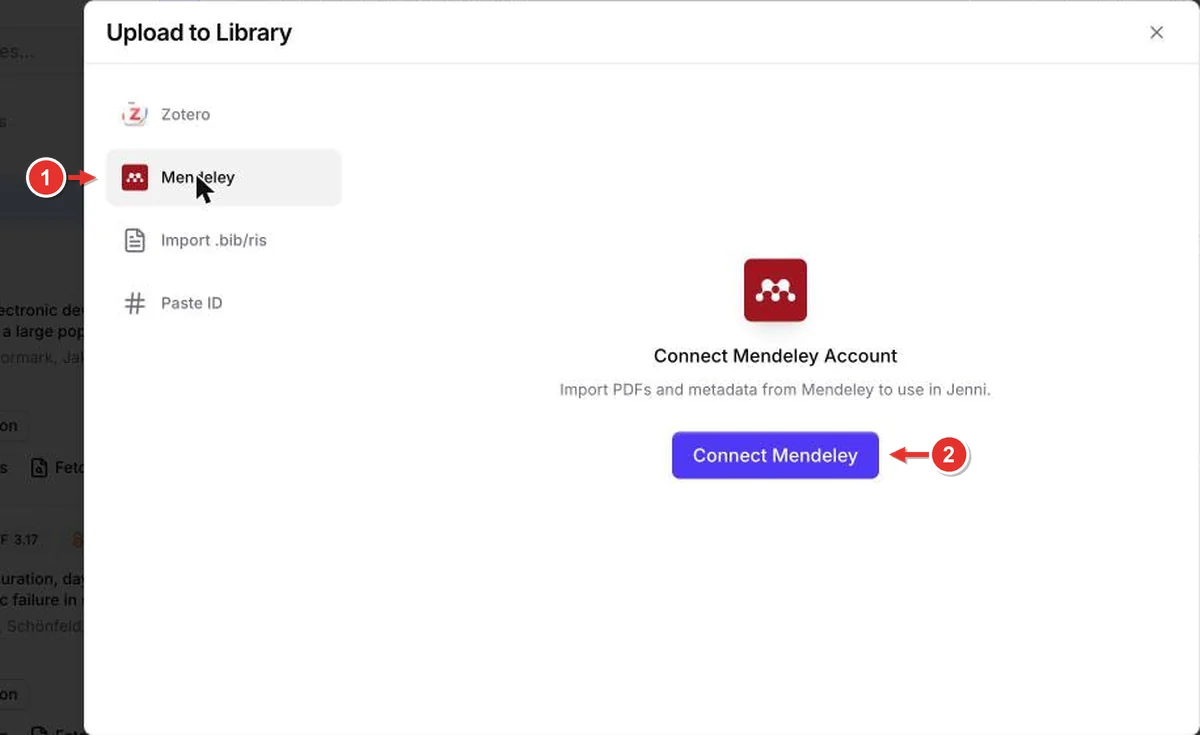
Sign in, connect the account and pick your collections. As with Zotero, only papers in a Mendeley collection are available to import.
Upload your own PDFs
The Upload PDFs tab takes up to 10 PDFs at once by drag and drop. The window says each PDF can be up to 25 MB and 150 pages.
Split long theses or books into chapters first. Smaller PDFs also give more focused answers in AI Chat.
Check and edit the details
Click Details on any source. You’ll see citation counts, the attached PDF, collections, the DOI and the abstract.
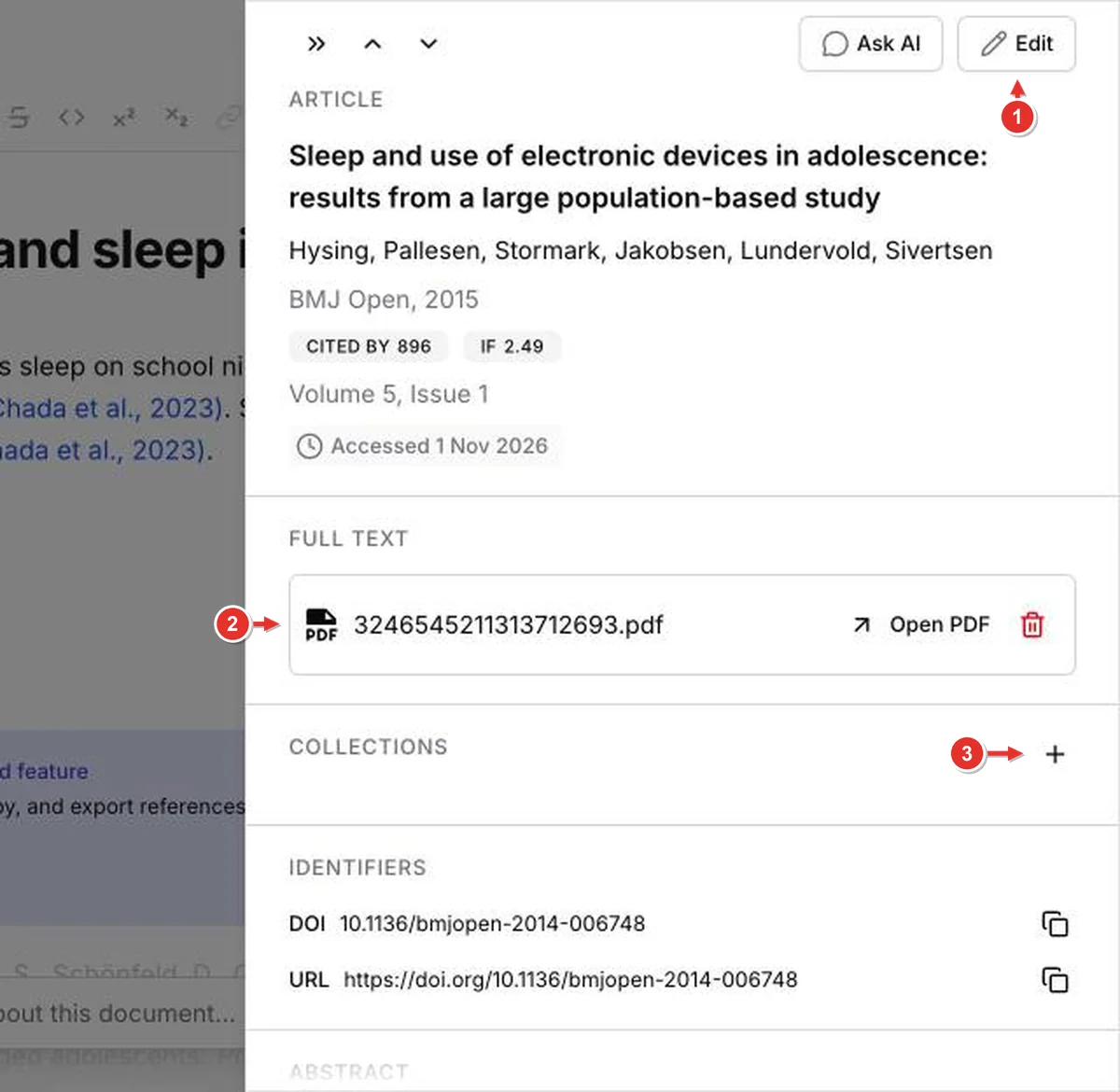
Use Edit if a title, author or year looks wrong. Jenni builds every citation from these details, so fixing them once fixes every citation.
Organize with collections
Collections are folders for a project or a class. Click Add to collection on a source, type a new name and choose Create.
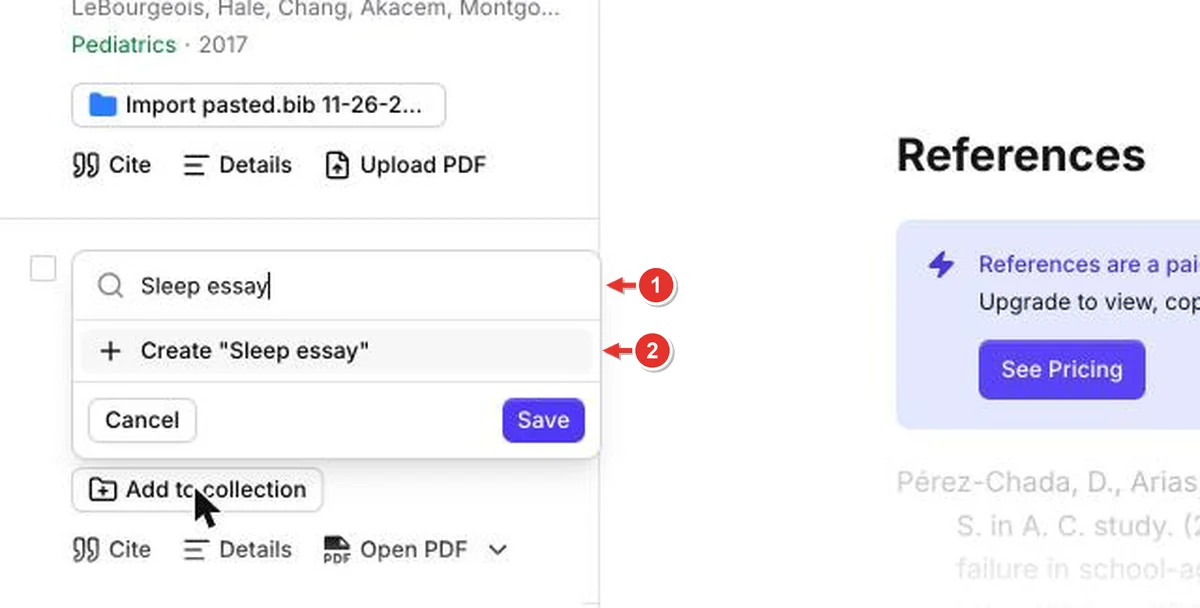
The Collections tab lists each one with its number of sources and indexed PDFs.
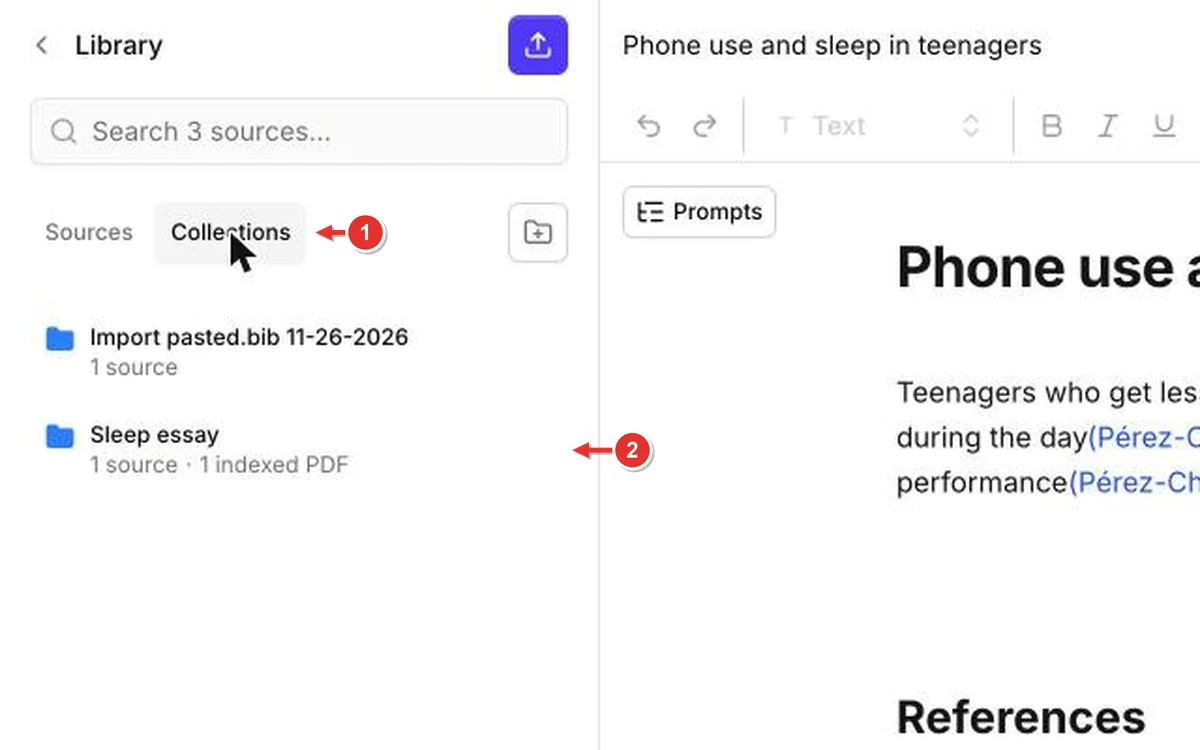
Collections pay off later: you can chat with a whole collection, or set a document to auto-cite only from one. See our AI Chat with PDFs guide.
Cite from your Library
In a document, click Cite and switch to the Library tab. Jenni shows your saved papers, each with a quote from its PDF that fits your sentence.
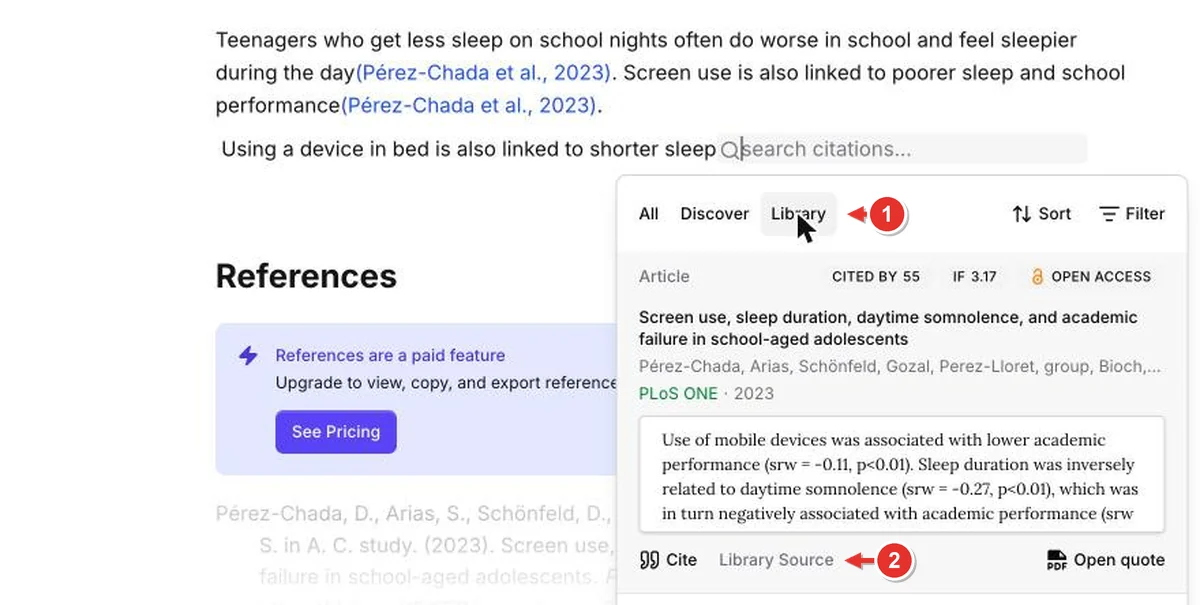
Click Cite under the right paper. The in-text citation appears straight away.
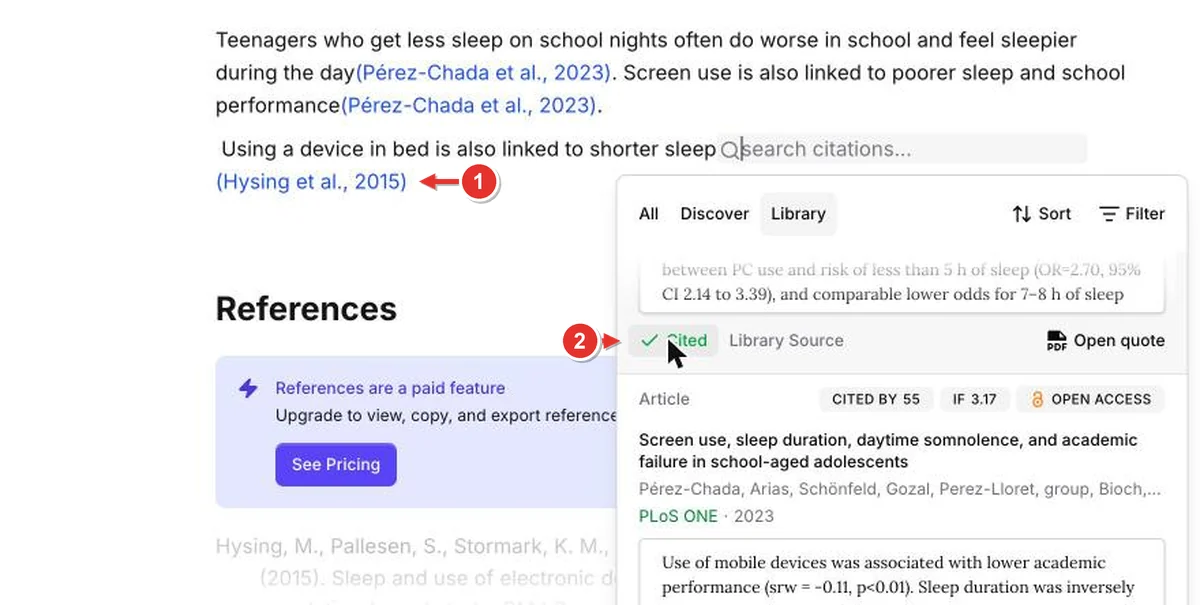
Free accounts get unlimited in-text citations, but the full reference list is a paid feature. More in our citation guide.
Free plan limits
| Free | Plus | Pro | |
|---|---|---|---|
| Library uploads | 10 | Unlimited | Unlimited |
| PDF size | 25 MB | 100 MB | 100 MB |
| PDF page count | 150 pages | 500 pages | 1,000 pages |
| Library export (.ris, .bib, .csv) | Yes | Yes | Yes |
In our test, the two fetched PDFs used 2 of the 10 uploads. The BibTeX import without a PDF did not count.
Need more room? Compare plans in our Free vs Plus vs Pro guide, or see ways to pay less.
What we found when we tested it
- 10 of 10 citations pointed to real papers (8 fully correct)
- A 2,592-word literature review with 49 sources in 1 min 50 s
- In our essay test, Jenni wrote 76% of the words while we steered
Honest limit: 2 of 5 essay citations were loose matches for their sentence. Always open the source before you keep it.
Start Jenni free in 3 steps
- Sign up with Google or email.
- Describe your paper in the prompt box: topic, length and citation style.
- Press → to accept a suggestion, or keep typing to skip it.
No card needed. Upgrade only if you hit the free limits.
FAQ
Does Jenni AI work with Zotero?
Yes. In the Library, choose Import from Zotero, connect your account and pick collections. Attached PDFs come across too. Only items inside a Zotero collection can be imported.
Does Jenni AI work with Mendeley?
Yes, the same way: Import from Mendeley, connect your account and choose collections.
Can I import from EndNote?
There’s no direct EndNote connection. Export your EndNote library as a .ris file and use Import .bib/ris.
How many PDFs can I upload for free?
10 on the free plan. Fetched PDFs counted toward this in our test. Plus and Pro have unlimited uploads.
Why can’t I chat with a paper in my Library?
It probably has no PDF attached. Use Fetch PDF or Upload PDF on that source; metadata-only sources can be cited but not chatted with.
What file types does the Jenni Library accept?
PDF files, plus .bib and .ris reference files. You can also add papers by DOI, PMID, arXiv link or ISBN.
Leave a Reply